# Checkout Page
{% hint style="success" %}
### Access the Checkout Page Settings
* Log in to your WordPress admin panel.
* Navigate to **WooCommerce** > **Settings**.
* Click the **Advanced** tab.
* Under **Page Setup**, find the **Checkout Page** option.
* Ensure the checkout page is set correctly (default: **/checkout/**).
{% endhint %}
#### **Customizing the Checkout Page**
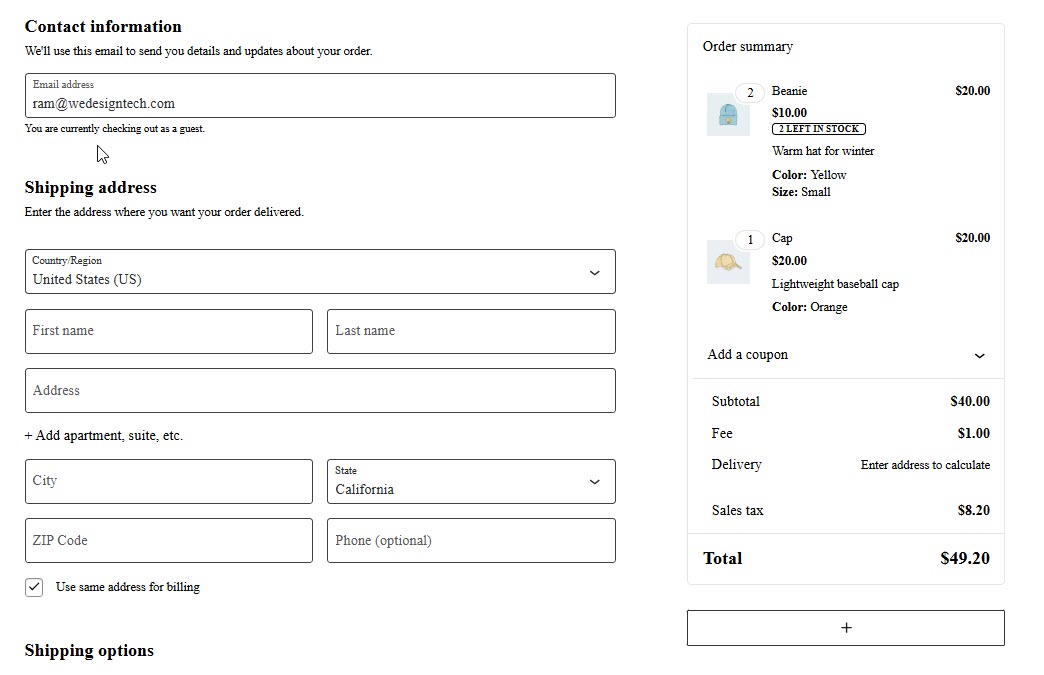
### **A. Configuring Checkout Fields**
To modify checkout fields:
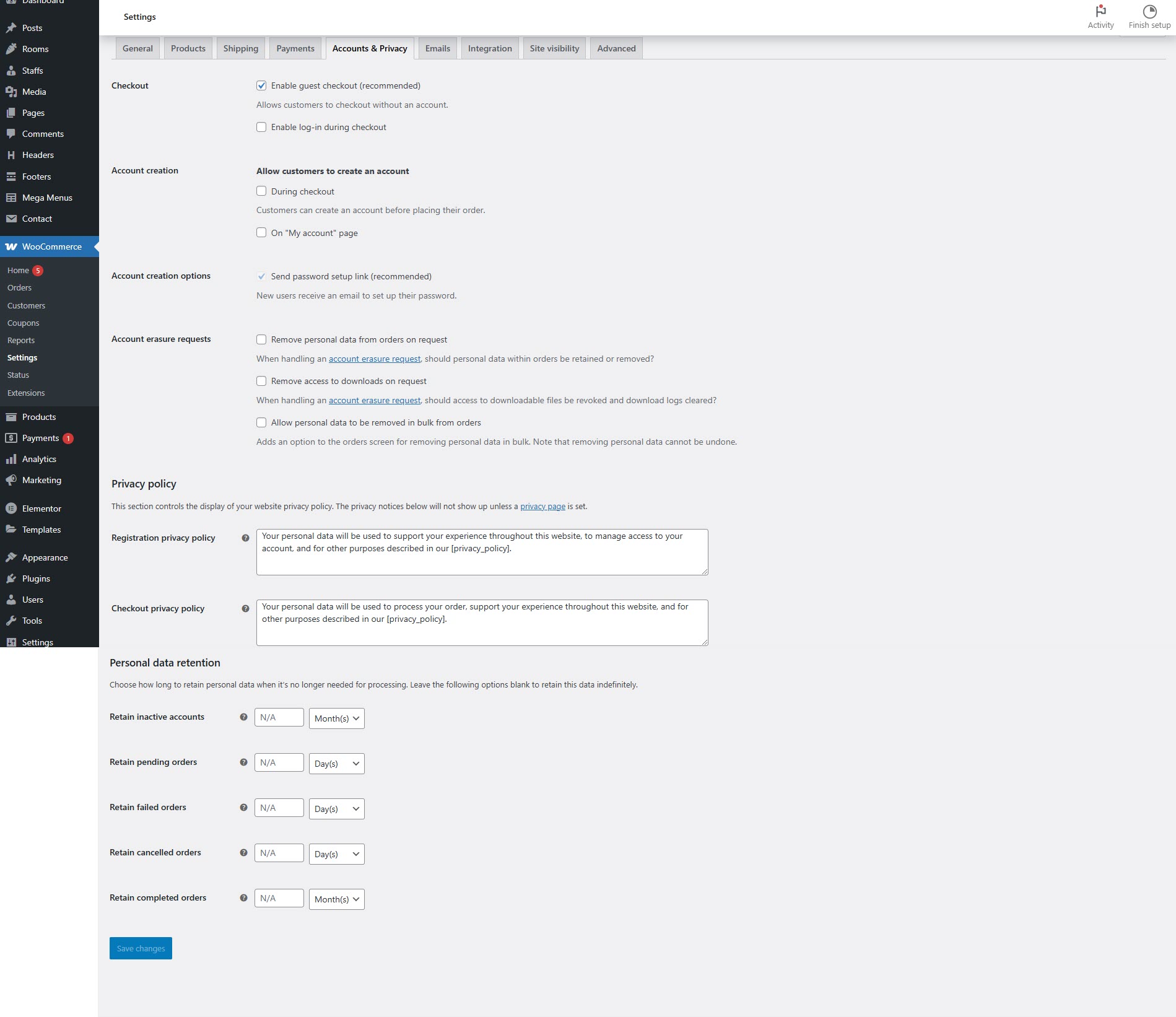
* Go to **WooCommerce** > **Settings** > **Accounts & Privacy**.
* Adjust guest checkout and account creation settings.
* To customize fields (e.g., remove "Company Name"), use a plugin like:
* **Checkout Field Editor for WooCommerce**
* **WooCommerce Custom Fields**
### **B. Enabling Payment Methods**
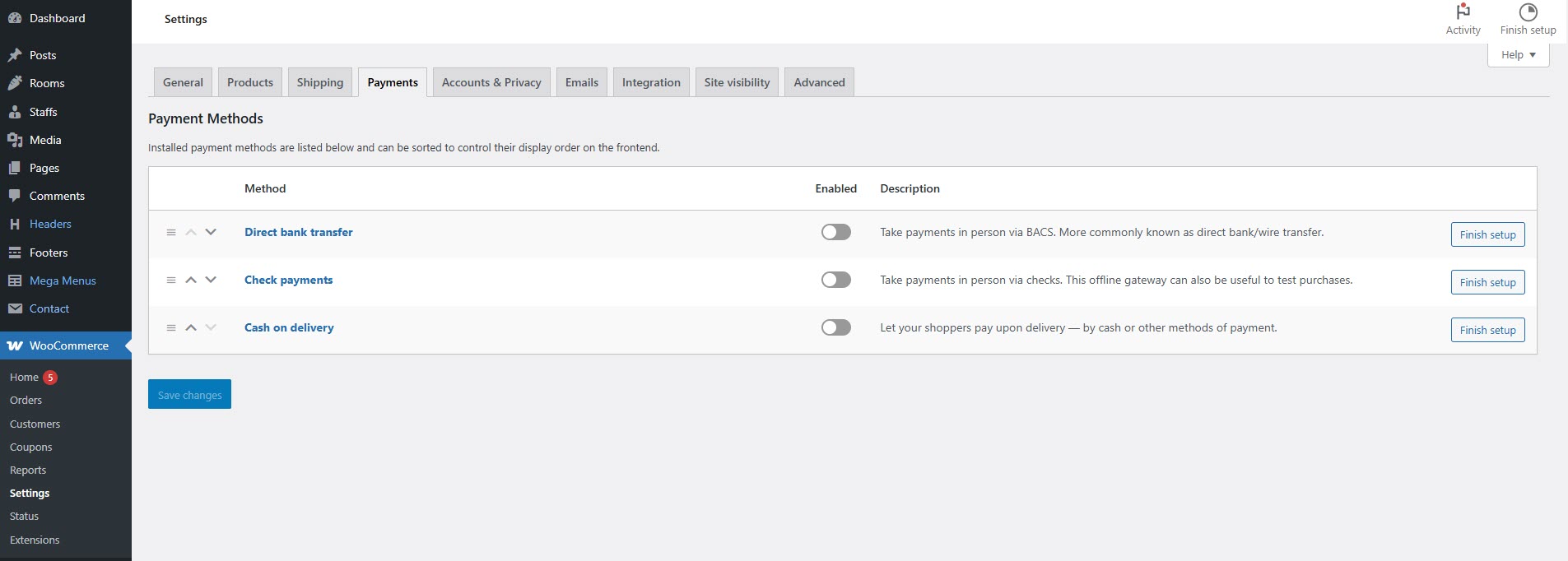
* Navigate to **WooCommerce** > **Settings** > **Payments**.
* Enable and configure payment gateways like:
* **PayPal**
* **Stripe**
* **Cash on Delivery**
* **Direct Bank Transfer**
#### **C. Enabling Coupon Codes**
* Go to **WooCommerce** > **Settings** > **General**.
* Check the **Enable coupons** box to allow discounts at checkout.
#### **Adding Checkout Page to Navigation**
{% hint style="success" %}
* Go to **Appearance** > **Menus**.
* Select your main menu and click **Add Items**.
* Find **Checkout** and add it to your navigation.
* Click **Save Menu**.
{% endhint %}
#### **Customizing Checkout Page Design**
{% hint style="success" %}
* Use the **Customizer**:
* Go to **Appearance** > **Customize** > **WooCommerce** > **Checkout**.
* Edit the **checkout template** with a page builder like **Elementor**.
* Add custom CSS to modify the checkout layout.
{% endhint %}
#### **Testing the Checkout Page**
{% hint style="success" %}
* Visit **yourwebsite.com/checkout/**.
* Add a product to the cart and proceed to checkout.
* Test different payment methods and shipping options.
For further customization, consider plugins like:
* **WooCommerce Checkout Manager** (to add/remove fields).
* **WooCommerce One Page Checkout** (for a faster checkout process).
{% endhint %}