# How to Update the Theme
Before processing any update, make sure to take a full site and database backup. That will ensure you’re able to revert to a working point in your site if anything unexpected happens.
It’s also **very important that you ensure your server limits are at least at the required minimums** for the update/theme install to complete seamlessly.
#### **Backup Your WordPress Website**
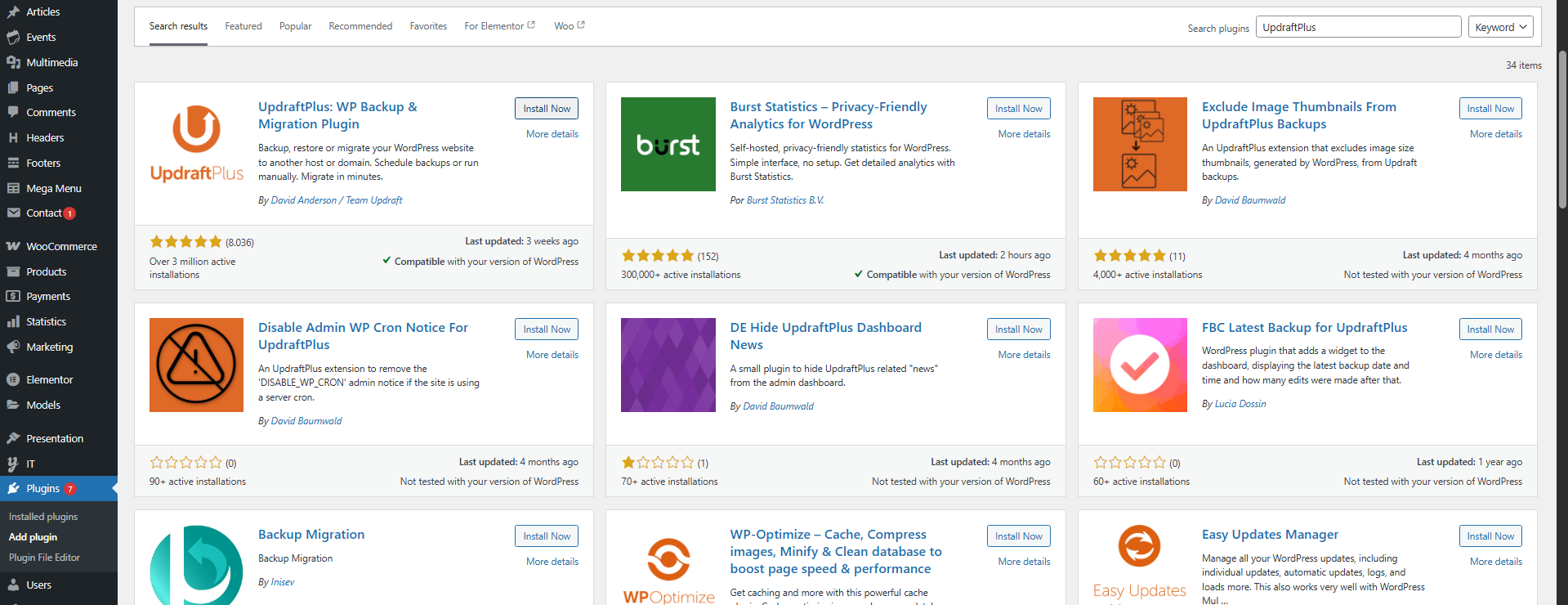
* **Install a Backup Plugin**
* Navigate to **Plugins** → **Add New**.
* Search for **UpdraftPlus, Duplicator, or BackupBuddy**.
* Click **Install Now** → **Activate**.
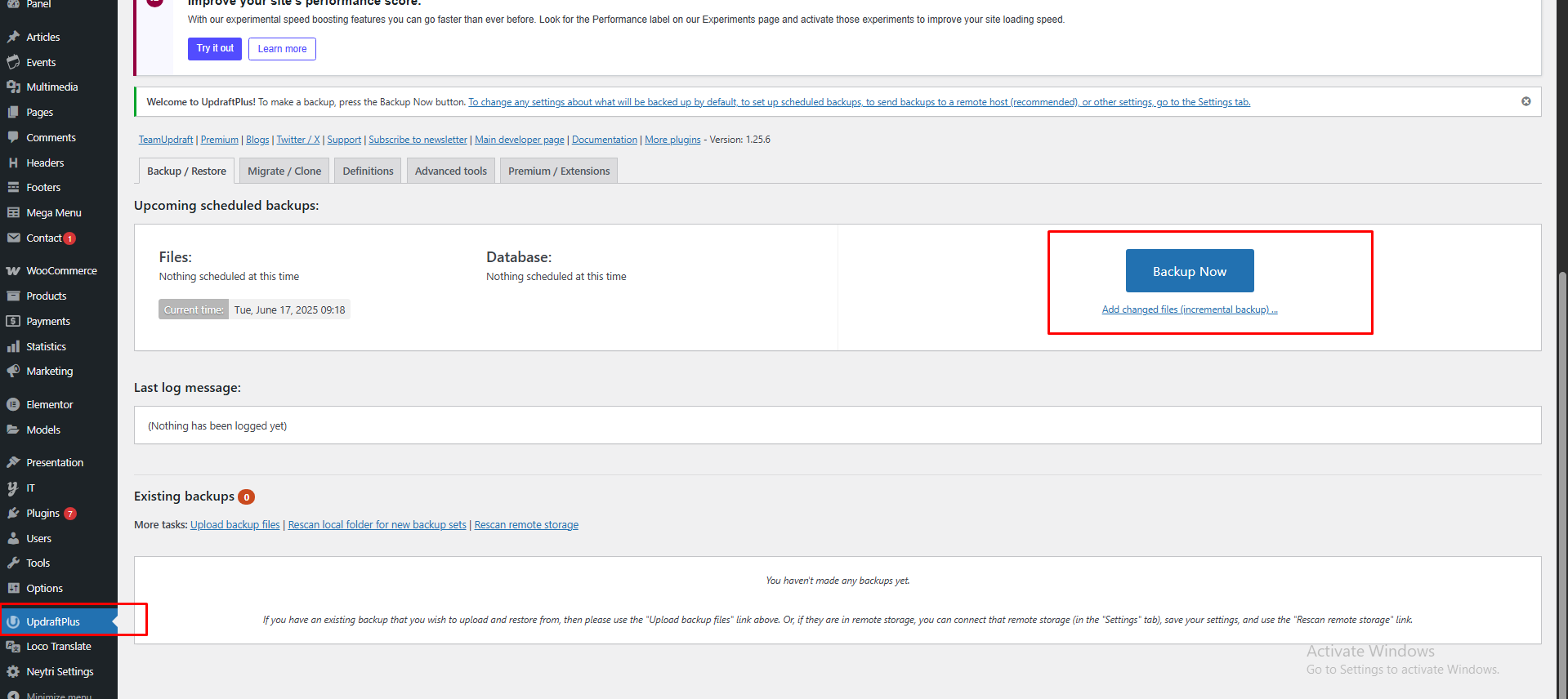
* **Create a Backup**
* Go to **Settings** → **UpdraftPlus Backups**.
* Click **Backup Now** and select **Files + Database**.
* Once completed, download the backup for extra safety.
#### Before proceeding with the update:
* **Kindly deactivate the required theme plugins** **(e.g., Thatha *****Plus,***** Thatha *****Pro,***** Thatha Shop, *****Wedesigntech Elementor Addon, Wedesigntech Portfolio Addon*****).**
* Log in to your ThemeForest account.
* Navigate to the **Downloads** section and locate your purchased theme.
* Click **Download** and select **“Installable WordPress file only”** (this will download a `.zip` file).
#### **Update via WordPress Dashboard**
* Log in to your **WordPress Dashboard**.
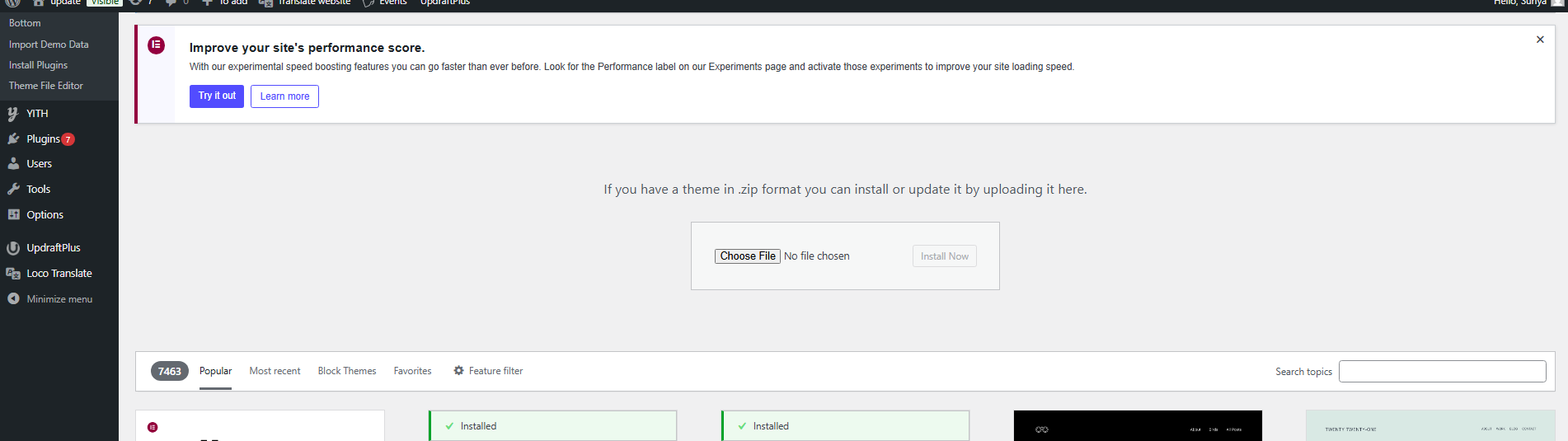
* Navigate to **Appearance → Themes**.
* Temporarily activate a default WordPress theme (e.g., **Twenty Twenty-Five**).
* Upload the new theme folder from the extracted `.zip` file.
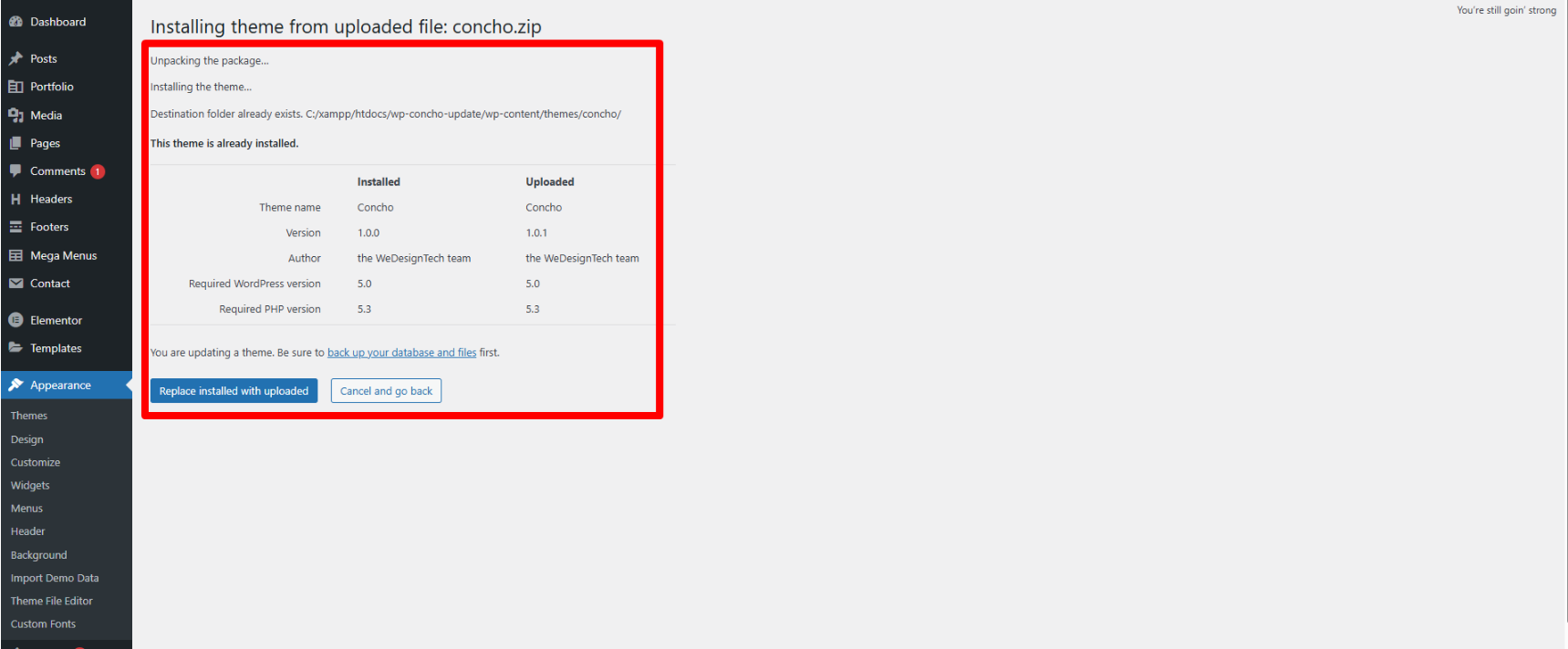
* When prompted, click **“Replace current with uploaded”** to install the latest version.
* Once uploaded, **activate the theme** and begin installing the required plugins.
#### **Update via FTP (Manual Method)**
* Download the latest version of the theme from ThemeForest.
* Connect to your website using **FTP (FileZilla or cPanel File Manager)**.
* Navigate to **/wp-content/themes/**.
* Delete or rename the existing theme folder.
* Upload the new theme folder from the extracted folder
* Log in to WordPress dashboard > Appearance > Themes
* Activate the Concho theme and begin installing the theme's required plugins
#### **Important Notes Before Updating**
* **Backup Your Website** (Use plugins like UpdraftPlus or manually export the database and files).
* **Check Changelog & Compatibility** (Review release notes for major changes).
* **Clear Cache** (After updating, clear cache if using caching plugins).
#### **Important Steps After Updating Your WordPress Theme**
After updating your WordPress theme, follow these steps to ensure a smooth transition without issues:
**1. Remove Older Copies of the Theme**
* **Do not keep older theme versions in the WP theme folder.**
* **Completely delete the old theme folder** before uploading the updated version.
* **Avoid renaming the theme folder** before updating, as WordPress stores settings like menus and widgets by folder path.
**2. Reset Cache (Browser, Server & Plugin Cache)**
* **Browser Cache:** Clear your browser cache (Chrome, Firefox, Edge, etc.).
* **Plugin Cache:** If you use caching plugins like WP Rocket, W3 Total Cache, or WP Super Cache, clear their caches.
* **Server Cache:** Some hosting providers have server-side caching (e.g., Cloudflare, Google PageSpeed, SiteGround Optimizer). If updates do not reflect, ask your host to clear the server cache.
**3. Update Child Theme (If Applicable)**
* If you use a **child theme**, switch back to the **parent theme** to check if issues exist there.
* If the parent theme works fine, update any outdated template files in your child theme.
**4. Update Required & Recommended Plugins**
* WordPress will notify you if required plugins need updating.
* Install and update all recommended plugins to maintain theme functionality.
* Always ensure you are using the latest versions.