# Site Sidebar
**Site Sidebars** are areas in your theme where you can place widgets to display content such as menus, search bars, recent posts, archives, categories, and more.
{% hint style="success" %}
Here's a short form of the **Site Sidebar** settings process
**Step 1 : Login** to your WordPress admin dashboard.
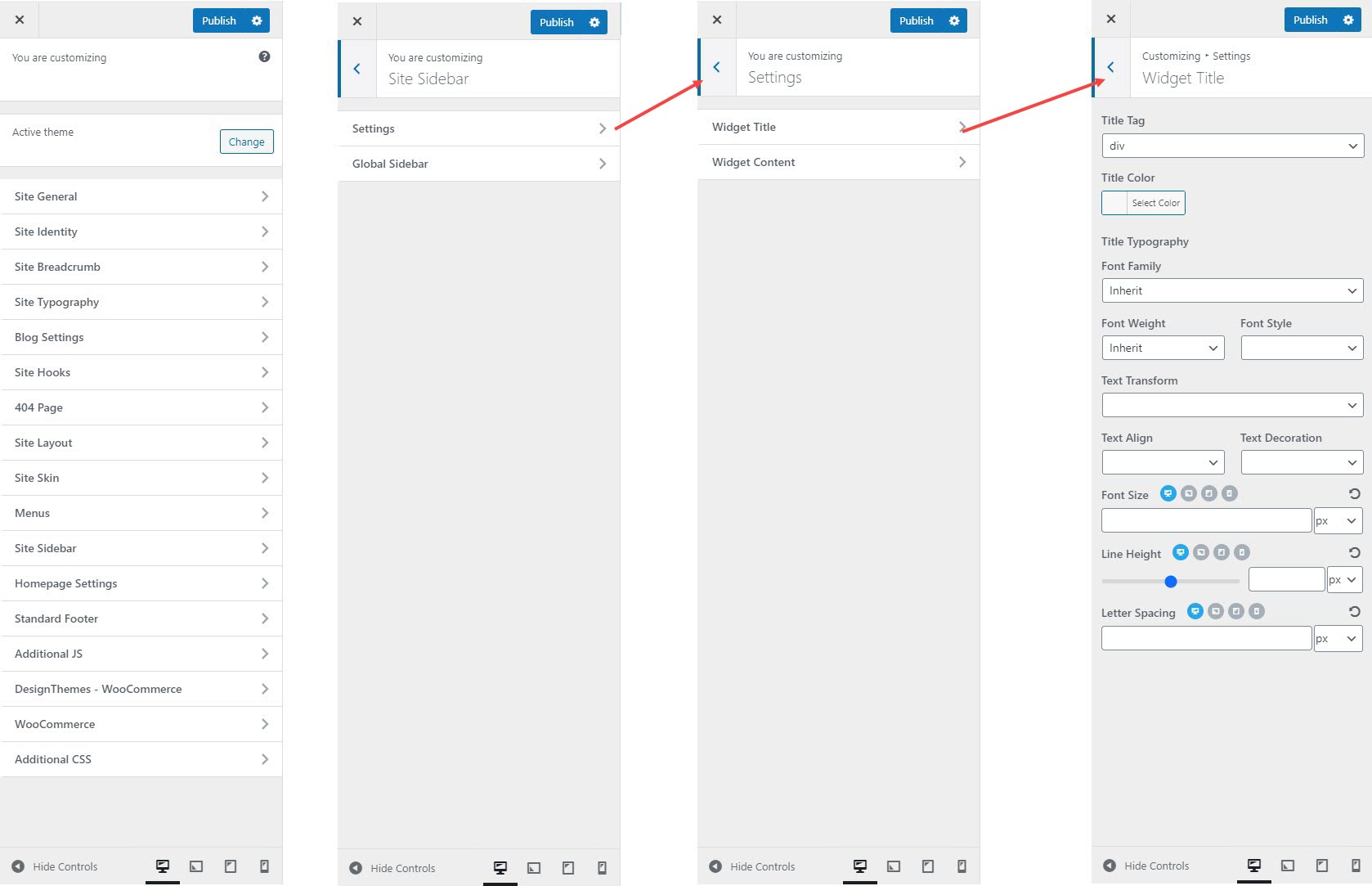
**Step 2 :** Go to **Appearance > Customize > Site Sidebars**
**Step 3 :** Choose the global or custom sidebar settings you want to adjust.
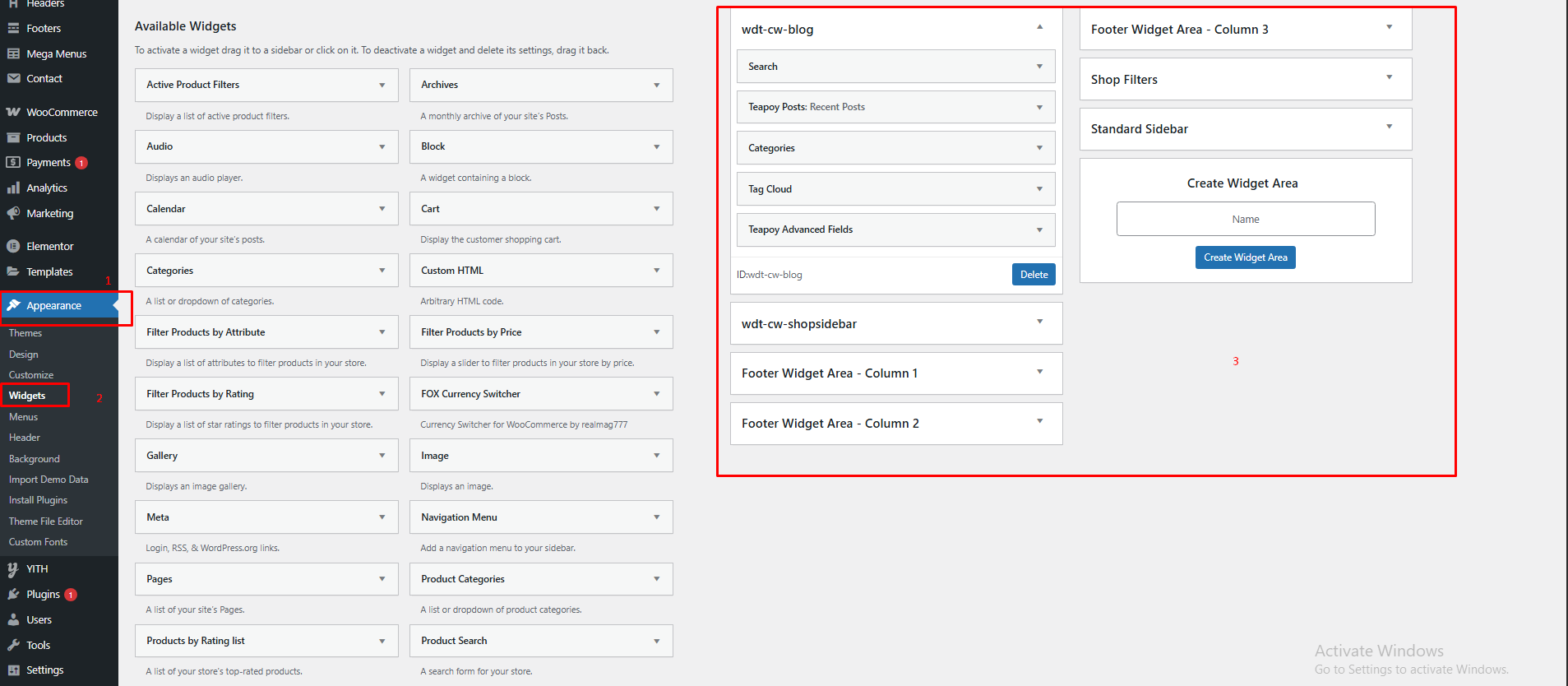
**Step 4 :** Add or manage widgets through **Appearance > Widgets**.
**Step 5 :** Save and publish your changes.
{% endhint %}
#### **Adding and Managing Widgets**:
* Go to **Appearance > Widgets** or **Appearance > Customize > Widgets**.
* Add widgets to the sidebar area by dragging them from the available widgets list.
* Customize each widget to display content like recent posts, categories, archives, search bars, etc.
#### **Sidebar Settings**
The **Site Sidebar** allows you to manage widget areas and customize the sidebar layout across your website.
#### **Widget Areas**
* **Global Sidebar** – This is the default sidebar used across your website unless overridden by page-specific settings.
#### **Customizing Sidebar Settings**
**Global Sidebar Settings**
* **Global Sidebar Layout** – Choose the default layout for the sidebar.
* **Hide Standard Sidebar** – Enable this option to remove the sidebar from all pages.
**Widget Title & Content Styling**
* **Widget Title** – Customize the font, size, and color of widget titles.
* **Widget Content** – Modify the text style, color, and spacing for better readability.
#### **Assigning the Sidebar to Specific Pages**
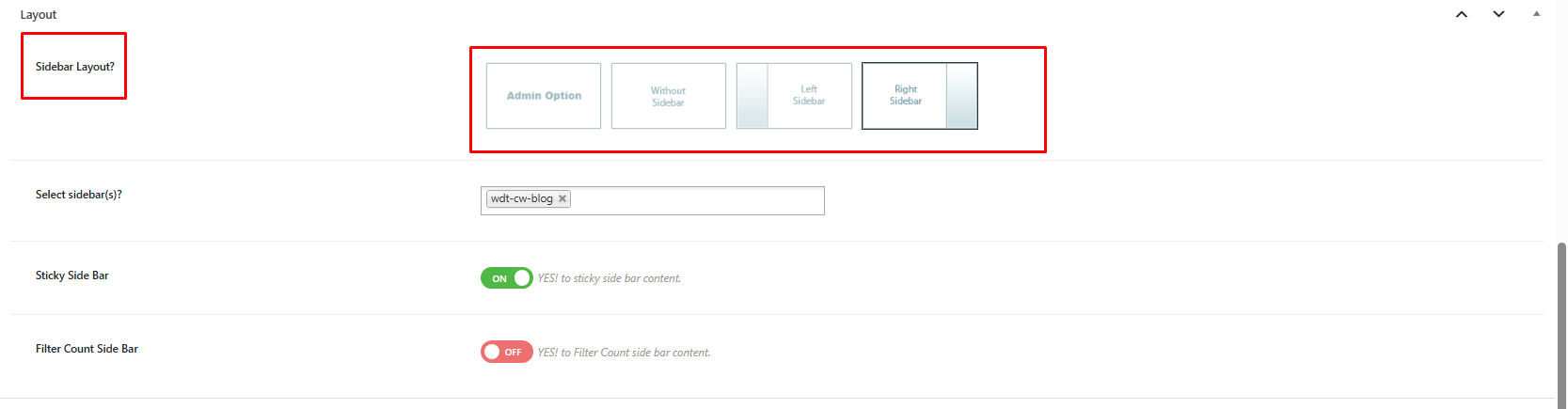
* Navigate to dashboard > **Pages → Edit Page**
* Locate **Sidebar Settings** in the page options
* Select Admin Option**, Without Sidebar, Left Sidebar, Right Sidebar**
* Click **Update** to apply changes
#### **Adding and Managing Widgets**
* Go to **Appearance → Widgets**
* Select **Global Sidebar**
* Click **Add Widget** and choose the desired widgets
* Drag and arrange them as needed
* Click **Save & Publish**