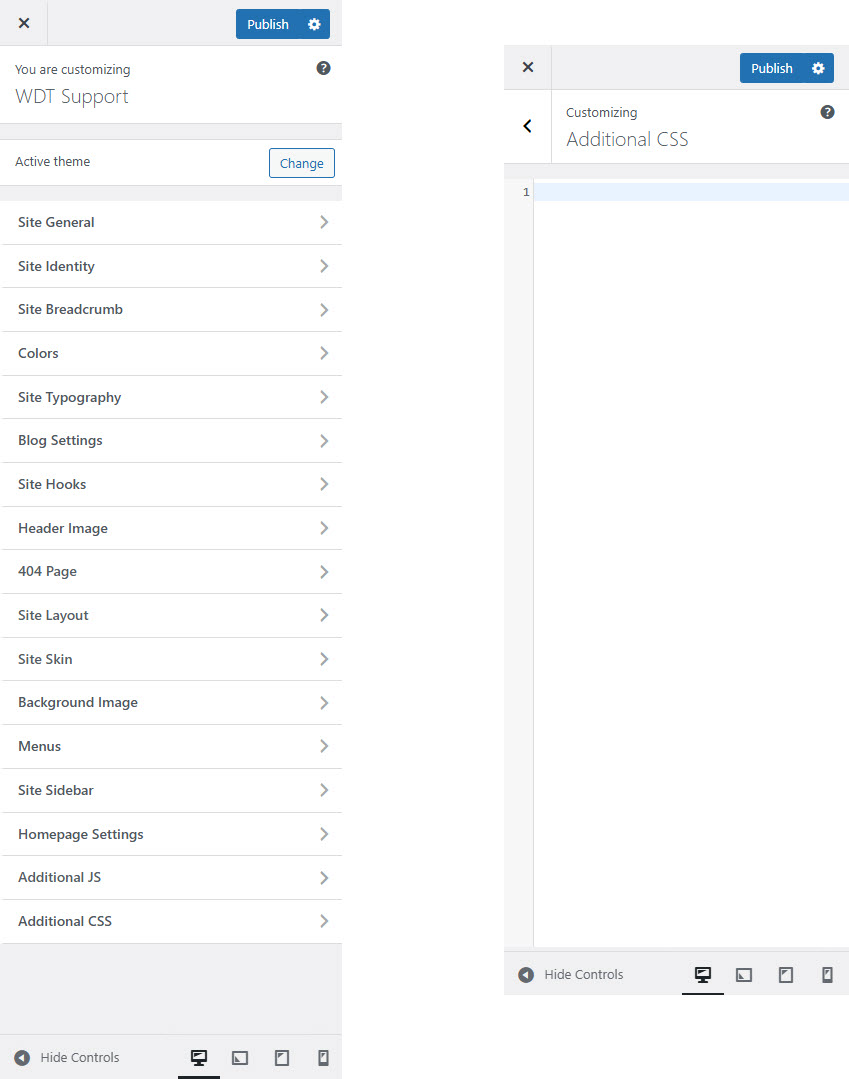
# Additional CSS
**Additional CSS** section in the WordPress Customizer allows you to add custom CSS to style your site without modifying theme files.
Here's how to use this feature effectively:
#### **Customizing with Additional CSS**:
1. **Accessing Additional CSS**:
* Go to **Appearance > Customize**.
* Click on the **Additional CSS** section.
2. **Adding Custom CSS**:
* In the text area, you can write or paste your custom CSS code.
* As you type, you’ll see a live preview of your changes on the right side.
3. **Best Practices**:
* **Target Specific Elements**: Use specific selectors to apply styles to particular elements.
* **Keep It Organized**: Add comments to your CSS to make it easier to understand and maintain.
* **Test Changes**: Use browser developer tools to test changes before adding them to the Additional CSS section.
4. **Common Uses**:
* Overriding default theme styles.
* Changing colors, fonts, and sizes.
* Adding margins, padding, or borders.
* Hiding or showing specific elements.
**Example:**
To change the background color of your site’s header:
```
.site-header { background-color: #f4f4f4;}
```