# Create a Portfolio Post
#### **How to Create a Portfolio Post in WordPress**
If your theme includes a Portfolio feature, you can add and showcase your work using Portfolio posts. Follow the steps below to create a new Portfolio post.
#### **Steps to Create a Portfolio Post:**
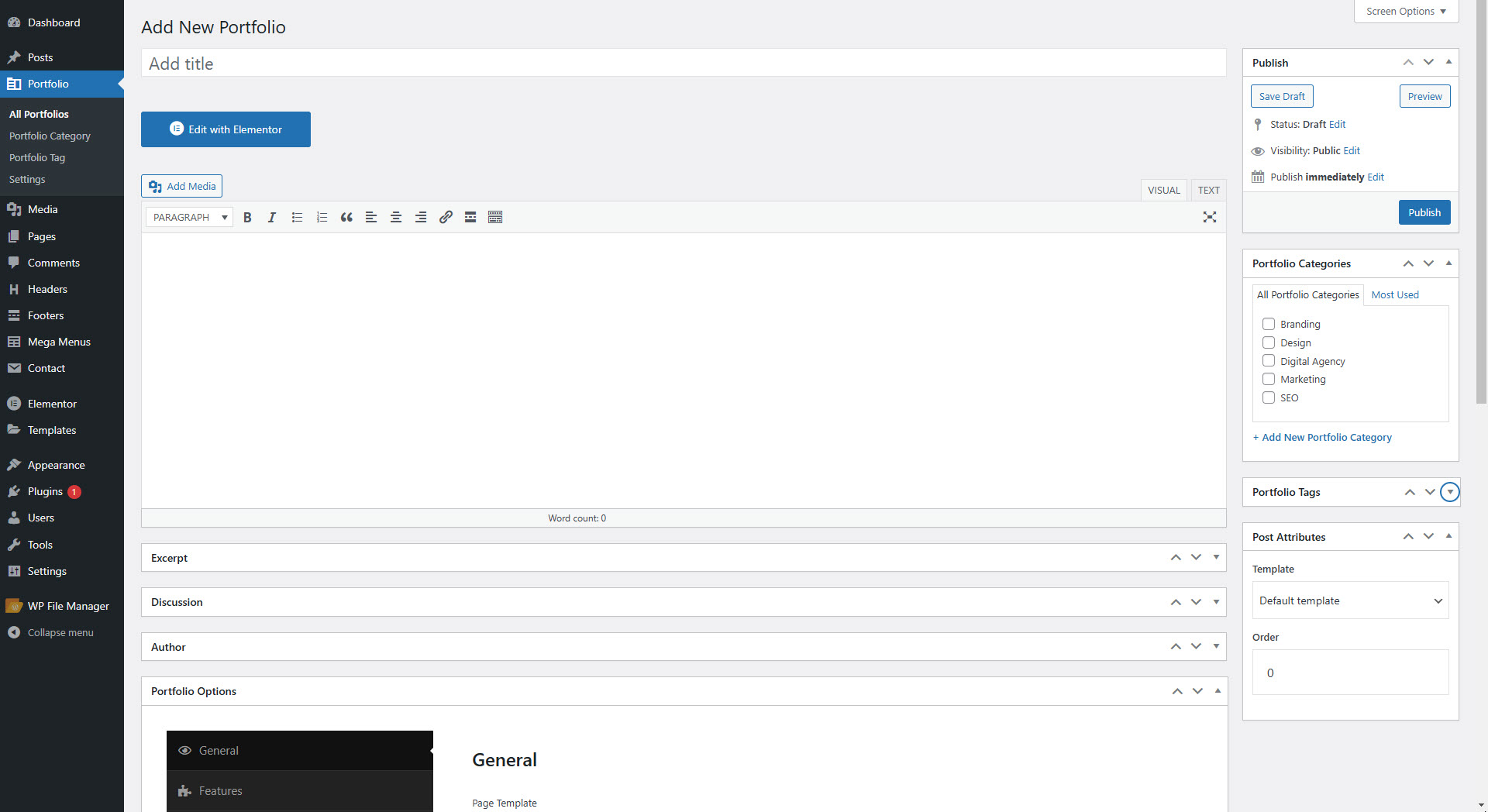
* **Go to WordPress Dashboard** → Navigate to **Portfolio** → **Add New Portfolio**.
* **Enter a Title**: Give your portfolio post a clear and descriptive title.
* **Add Portfolio Content**:
* Use the WordPress Editor or click **“Edit with Elementor”** to design your portfolio entry.
* You can include project images, a detailed description, services provided, and any other relevant project details.
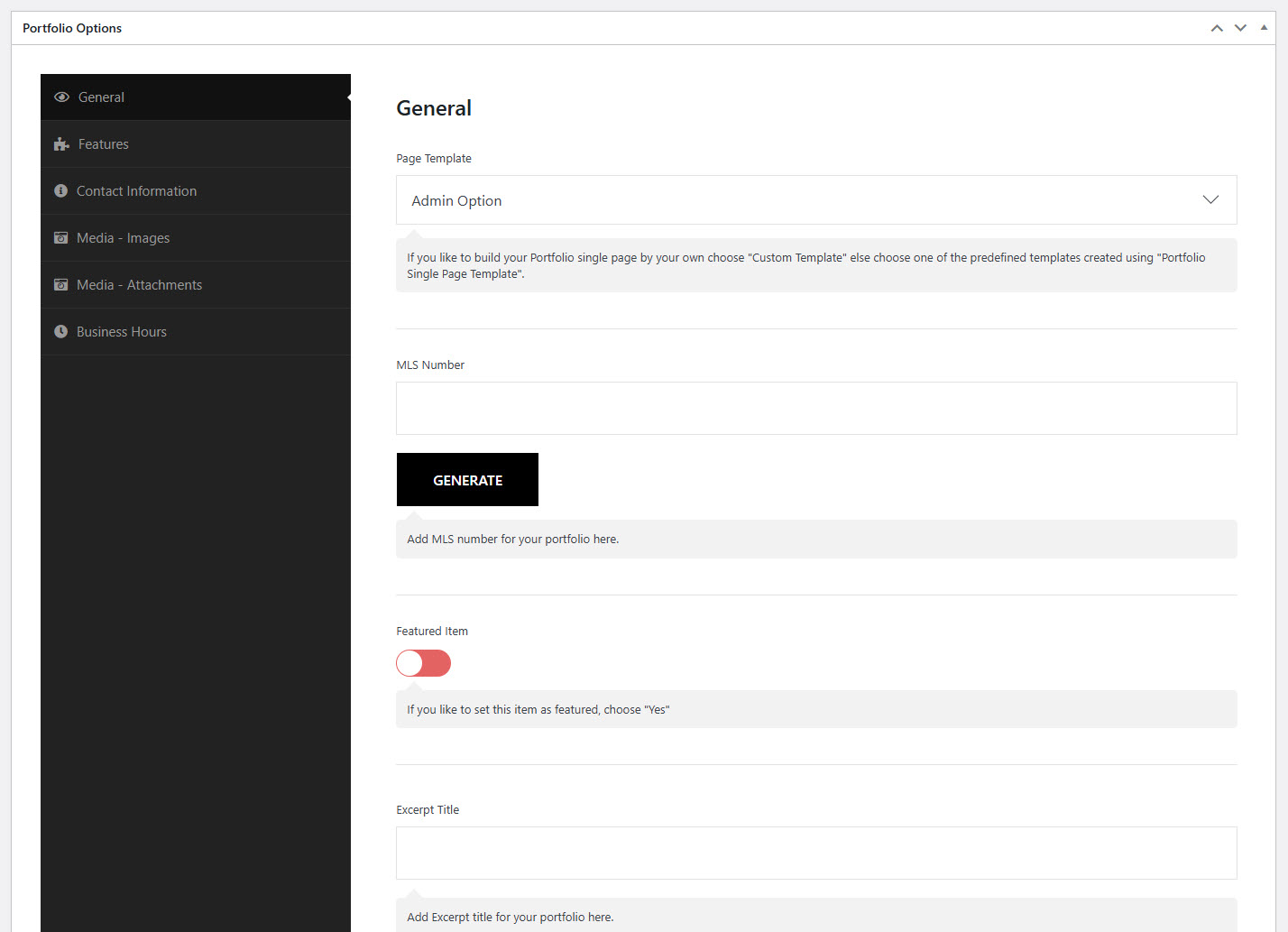
* **Customize Portfolio Settings** :
* Manage and configure your portfolio options. Visit the settings page here for more details.
* **Set a Featured Image**:
* Learn how to set a featured image
* **Assign Categories & Tags** (Optional):
* Organize your portfolio by adding categories and tags for easier navigation.
* **Publish the Portfolio Post**:
* Click **Publish** to make the post live on your site.
**Displaying Your Portfolio:**
* Use a **Portfolio Grid** or **Masonry Layout** in Elementor to display portfolio items on any page.