# Customizing Pages with Elementor
**Step 1: Log in to WordPress**
* Go to your WordPress dashboard by visiting `yourdomain.com/wp-admin`.
* Enter your username and password.
**Step 2: Navigate to the Page You Want to Edit**
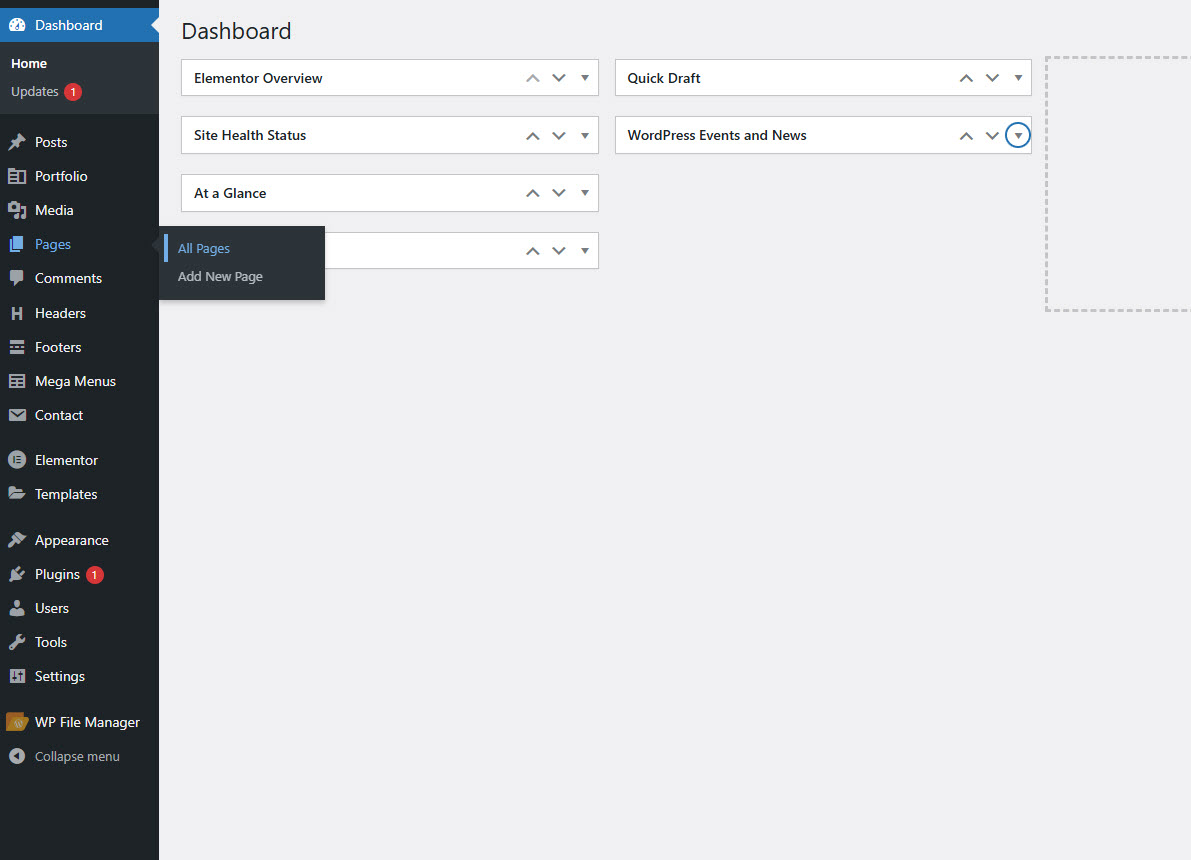
* In the dashboard, go to **Pages > All Pages**.
* Hover over the page you want to edit.
**Step 3: Click “Edit with Elementor”**
* Click the **Edit with Elementor** button.
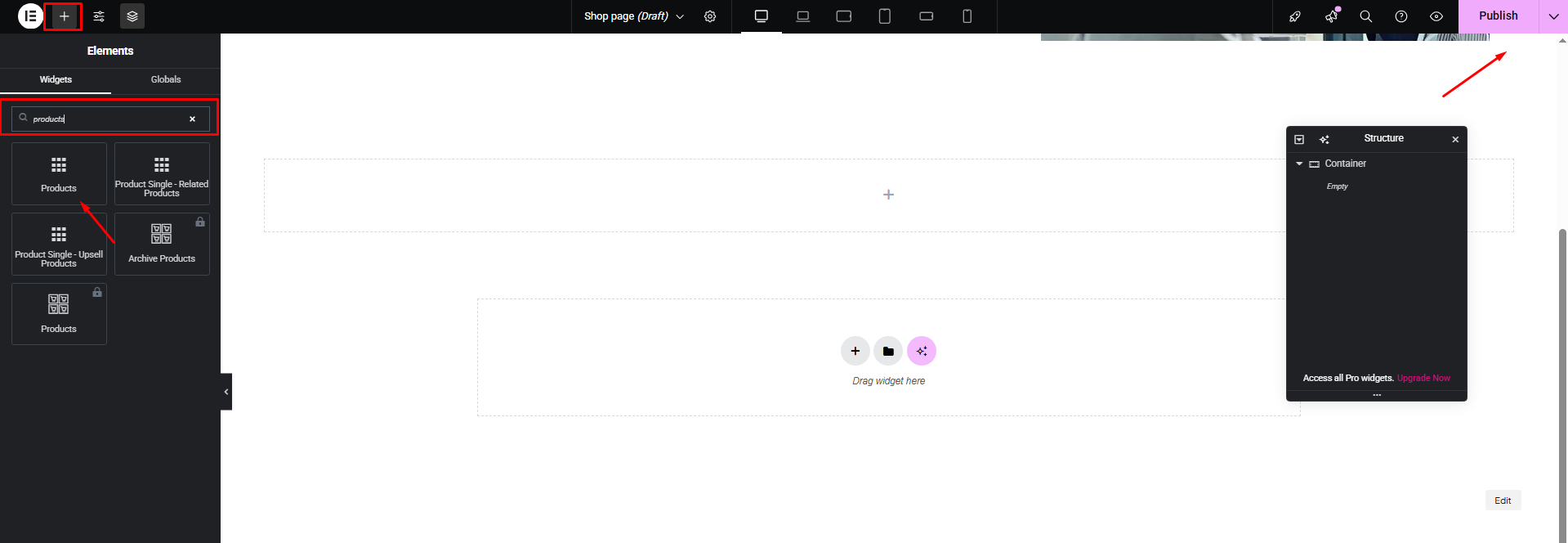
* The Elementor editor will load with a live preview of your page.
**Step 4: Add or Customize Widgets**
* On the left panel, you’ll see available widgets (like Heading, Image, Button, etc.).
* Drag and drop any widget into the page sections on the right.
* Click on any widget to open its settings and customize content, style, and advanced options.
**Step 5: Save Your Changes**
* Once you're satisfied with the changes, click the **Update** button at the bottom left to save your work.