# One-Click Demo Import
#### **How to Import Demo Content via One Click Demo Import**
If your theme includes the **One Click Demo Import** feature, follow these steps to quickly set up your site with demo content:
#### **Step 1: Install and Activate Required Plugins**
1. Go to **Appearance → Install Plugins** in your WordPress dashboard.
2. Install and activate the **One Click Demo Import** plugin (if not pre-installed).
#### **Step 2: Navigate to Demo Import**
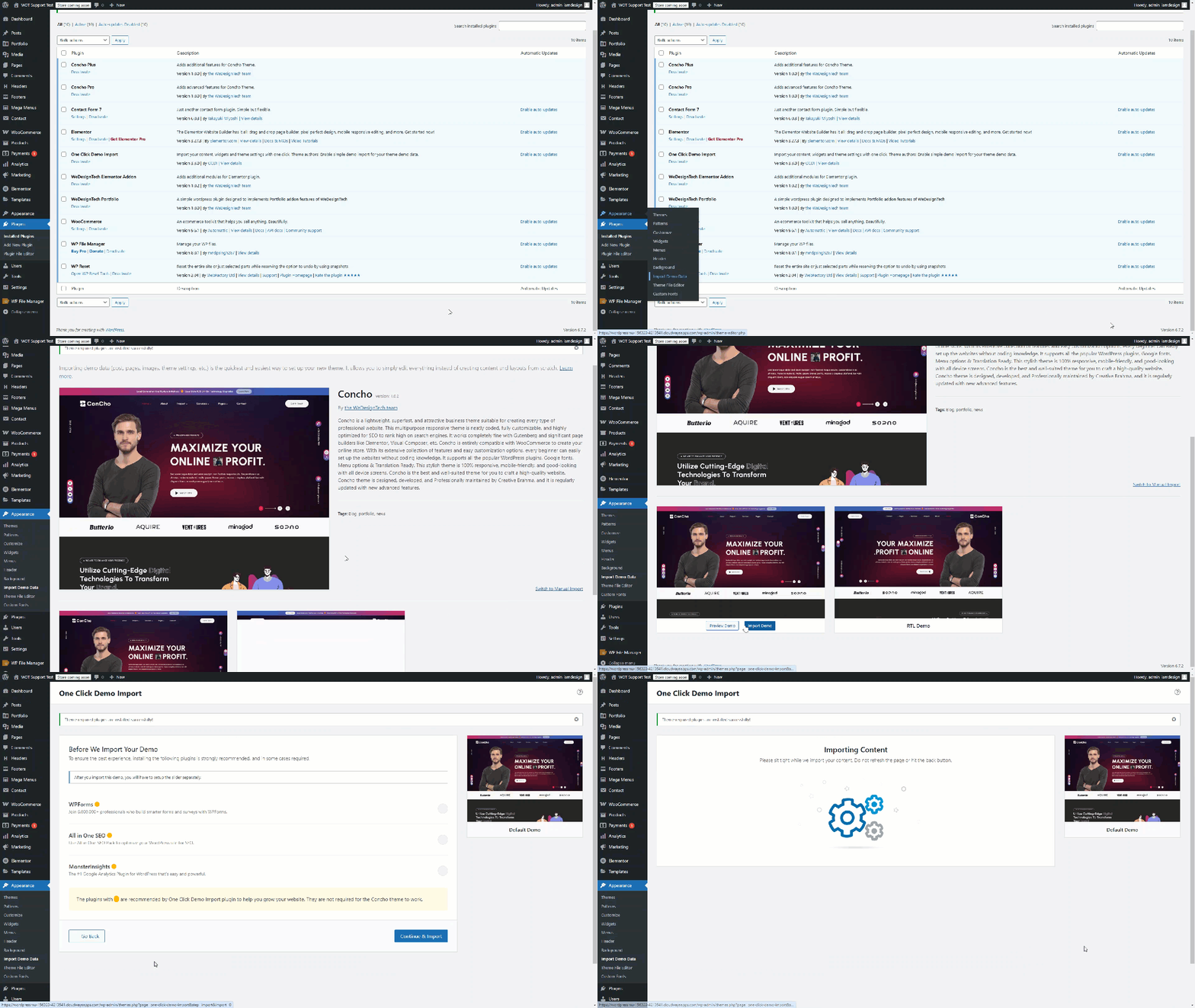
1. Go to **Appearance → Import Demo Data**.
2. You will see a list of available demo layouts.
#### **Step 3: Select and Import Demo Content**
1. After clicking “Install Demo Data”
2. Select the demo you want to import.
3. Click the **“Import Demo”** button.
4. Then, click **“Continue & Import”** to proceed.
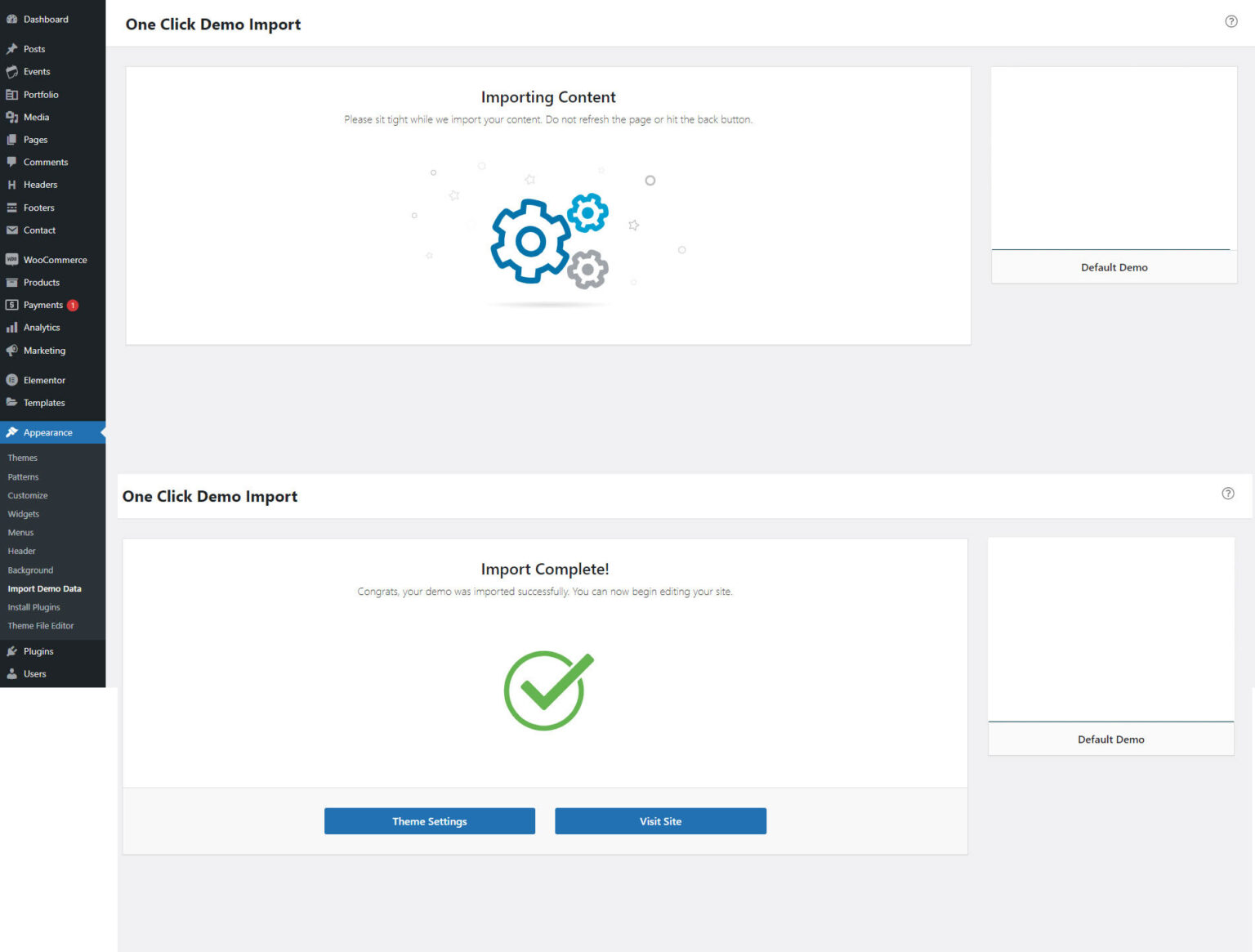
5. Wait for the import process to complete — this may take a few minutes, depending on your server speed.
#### **Step 4: Verify the Import**
* Once the import is complete, go to **Pages, Posts, and Media** to check if the demo content has been added.
* Navigate to **Appearance → Customize** to ensure the theme settings are applied correctly.
#### **Troubleshooting Tips**
**Demo Import Fails or Stuck?** Try increasing your PHP limits:
* `max_execution_time = 300`
* `memory_limit = 256M`
* `post_max_size = 64M`
* `upload_max_filesize = 64M`
**Failed to import media files (images)?**
* Please **reset your WordPress site** using a database reset plugin (such as WP Reset) to ensure a clean installation.
* After resetting the site.
* Reinstall the required theme and plugins.
* Navigate to the **Demo Import** section.
* Select your desired demo and click **“Import Demo”**.
* Then click **“Continue & Import”** to begin the process.