# Create a Blog Post
#### **How to Create a Blog Post**
**Step 1: Add a New Post**
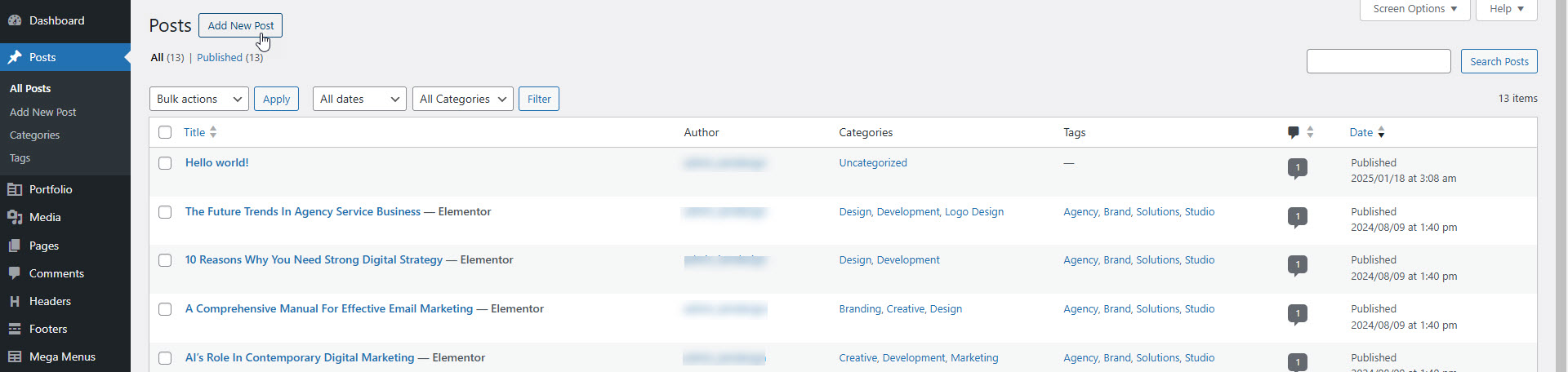
* Navigate to **Posts > Add New Post** in the WordPress dashboard.
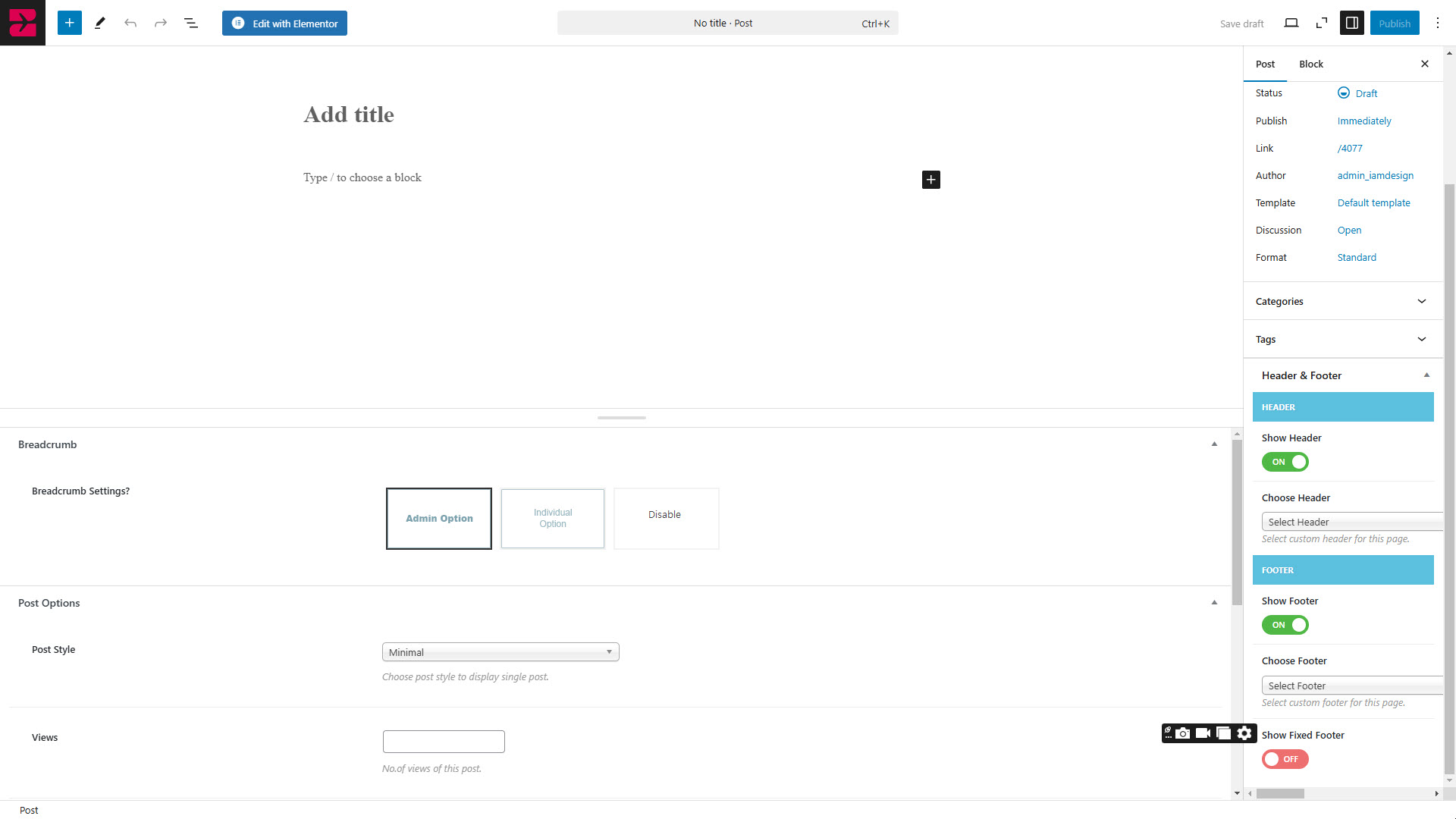
* Enter an **explanatory title** for your post.
**Step 2: Add Content and Media**
* Write your content in the text editor.
* Use the **“Add Media”** button to include images, audio, or video.
* Style your content with headings, links, lists, bold/italic text, blockquotes, and more.
**Step 3 : Select a Format and categories**
**Post Format:**
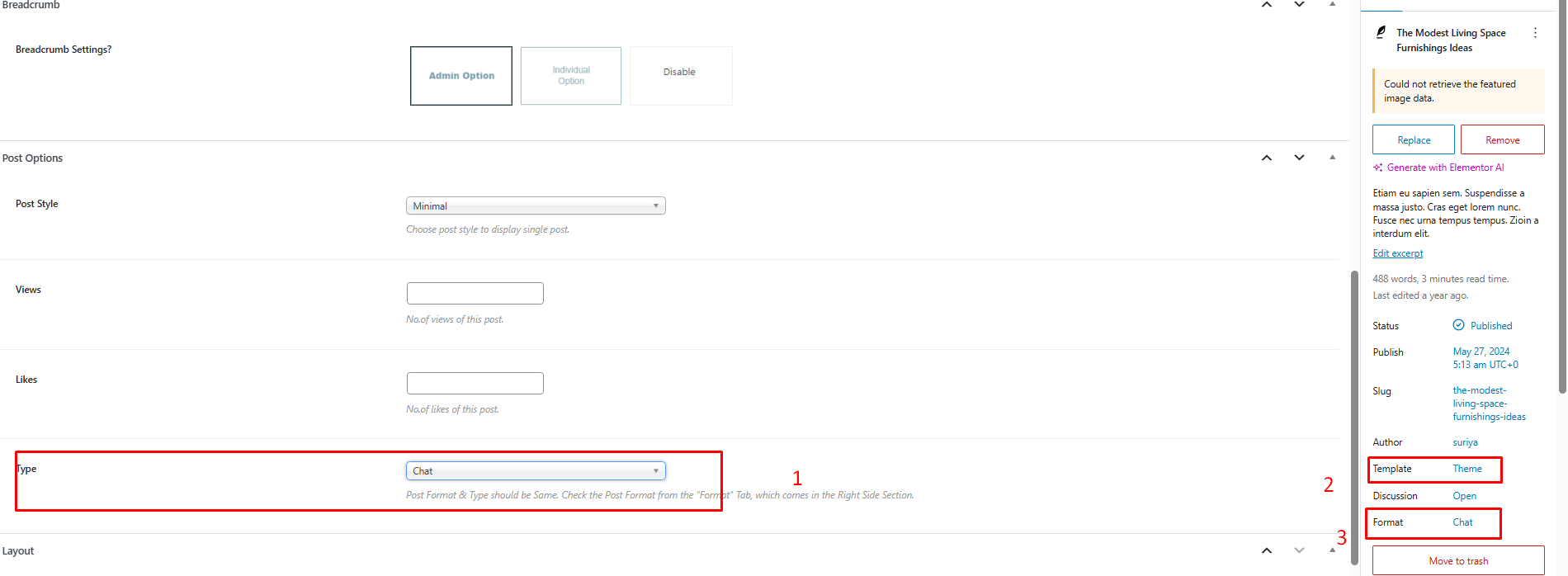
* In the post editor's sidebar, you can choose a **Format** to define how your content is displayed. Options include: Aside, Audio, Chat, Gallery, Image, Link, Quote, Standard, Status, Video
* Each format provides a unique layout suited to specific types of content
* Kindly ensure that you have selected the **same format** under the **Type** section as you did in the **Post Format**. Also, please make sure to select the **Template** as **"Theme"** to ensure the post format displays correctly on the front end
**Categories**
* Assign the post to one or more **categories** in the right panel.
**Step 4 : Add Tags**
* Add relevant **tags** that describe your post content. Tags will appear at the bottom of the post.
**Step 5 : Set Post Attributes and Featured Image**
* Select a **post template** under the **Post Attributes** section.
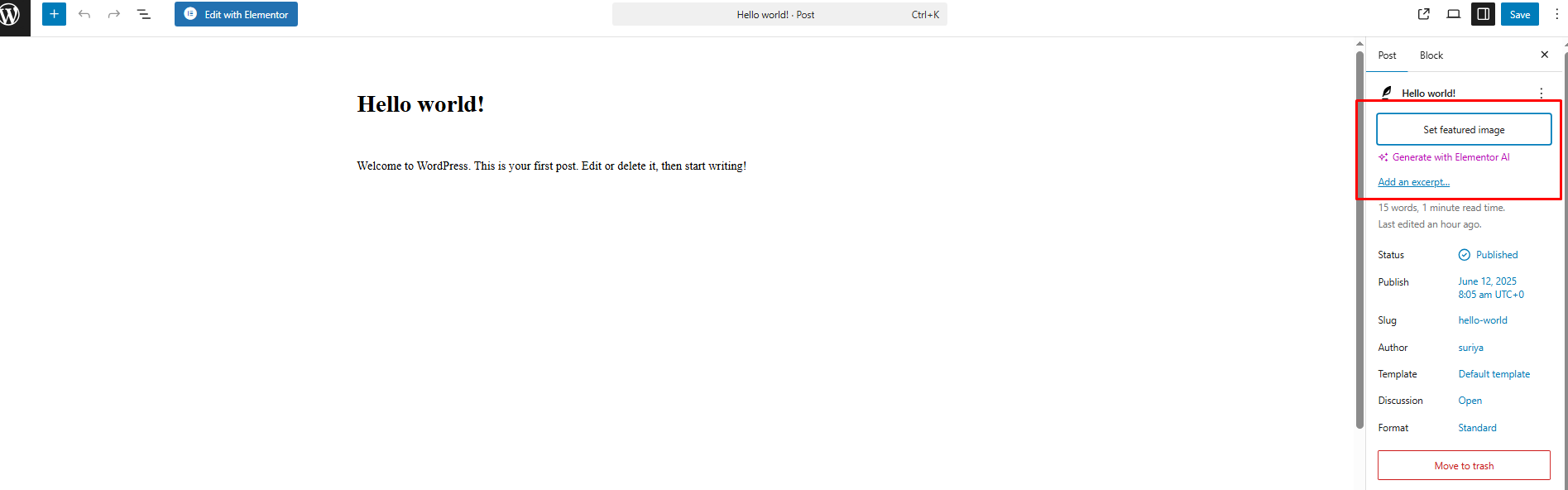
* Add a **featured image** to represent your post visually.
**Step 6 : Preview and Publish**
* Click **Preview** to review your post.
* If satisfied, click **Publish** to make it live