# Install and Setup WooCommerce
### Installing WooCommerce
{% hint style="success" %}
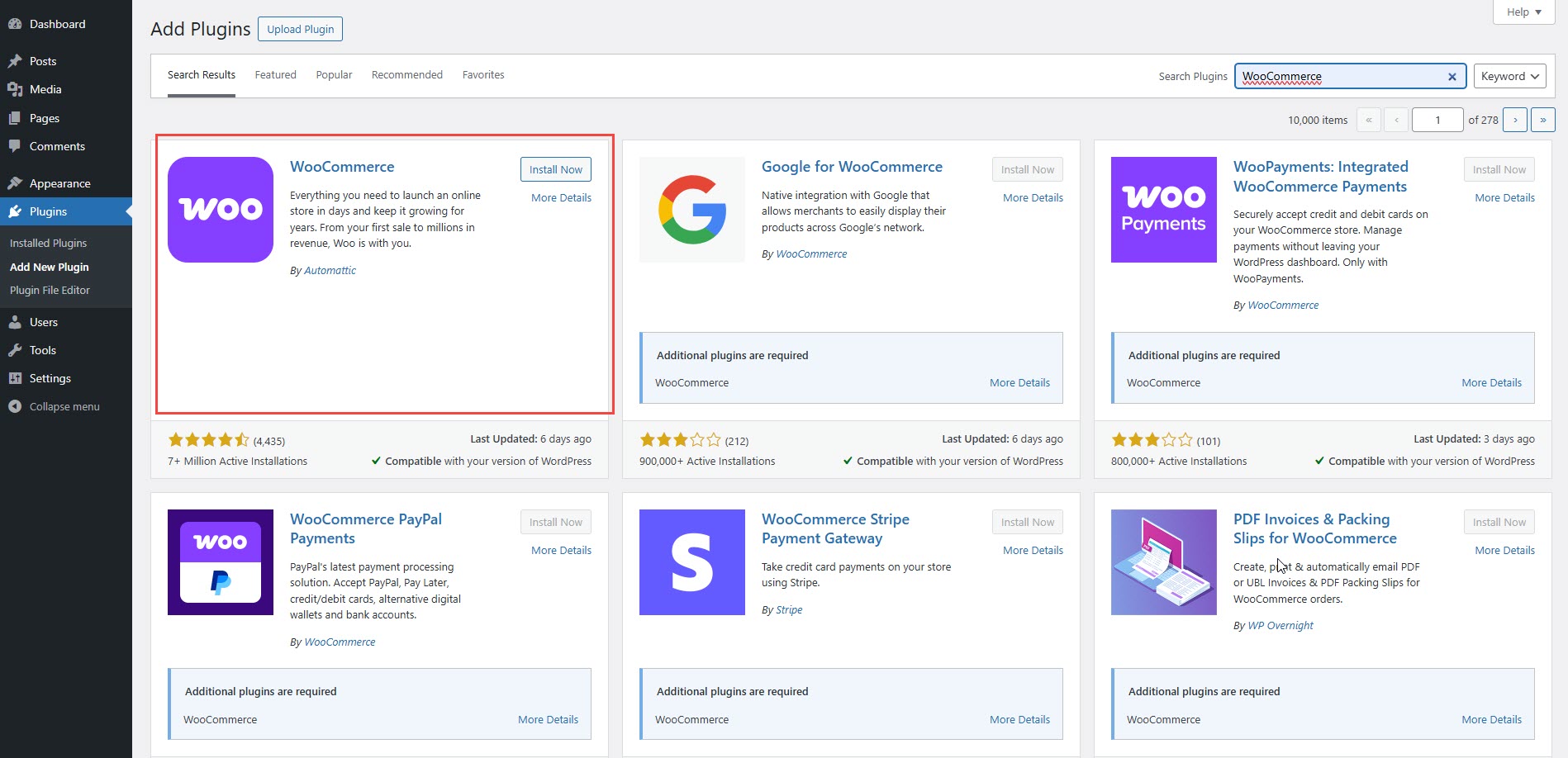
* Log in to your WordPress admin panel.
* Navigate to **Plugins** > **Add New Plugins**.
* In the search bar, type **WooCommerce**.
* Click **Install Now** next to the WooCommerce plugin.
* Once installed, click **Activate**.
{% endhint %}
#### **WooCommerce Setup Wizard**
After activation, WooCommerce will guide you through its setup wizard:
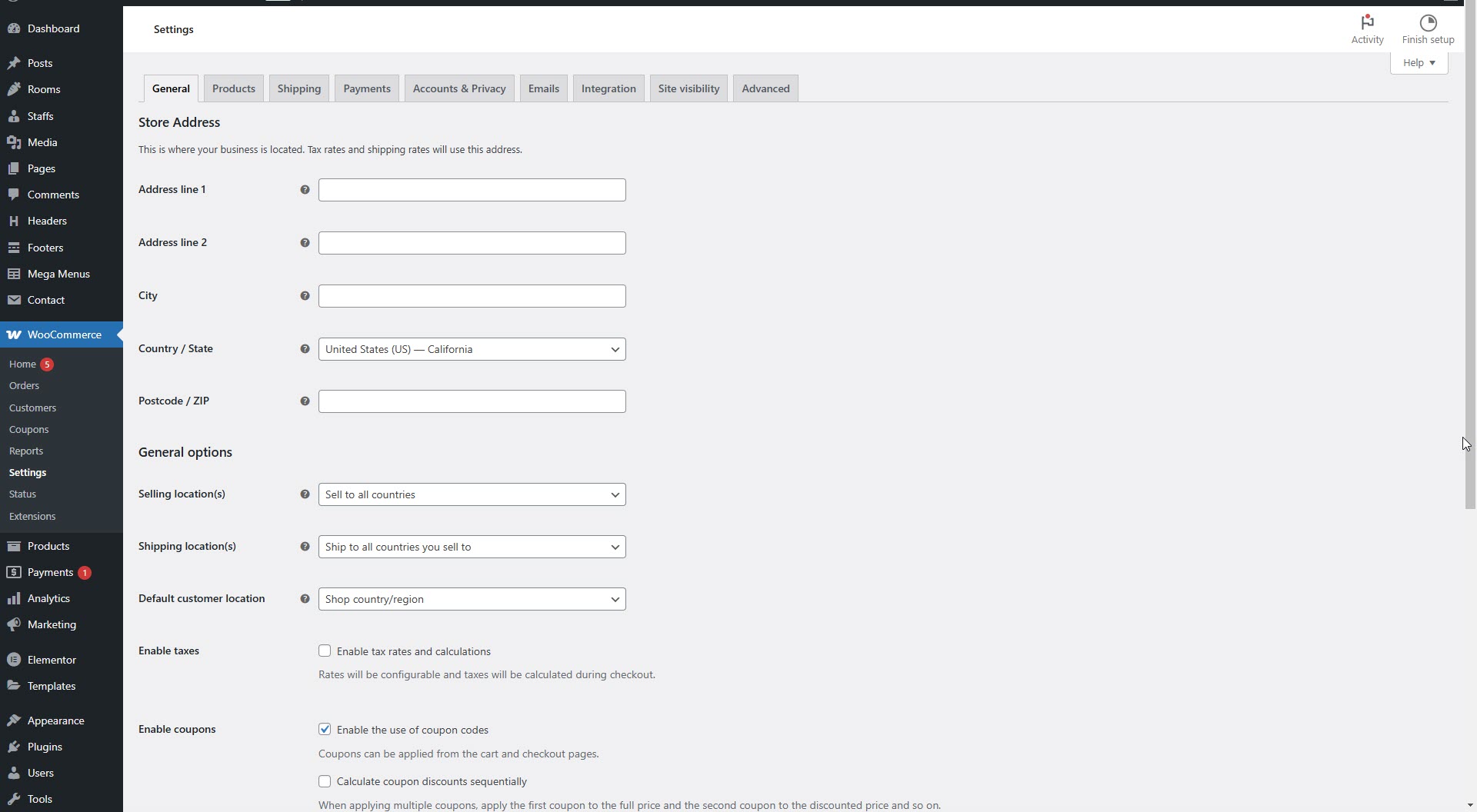
1. **Store Setup** – Enter your store details (address, currency, industry).
2. **Payment Options** – Configure available payment methods.
3. **Shipping Settings** – Define shipping zones and rates.
4. **Recommended Features** – Choose optional WooCommerce extensions.
5. **Complete Setup** – Finalize and start adding products.
**Verify Installation**
To confirm WooCommerce is active:
* Go to **WooCommerce** in the WordPress dashboard.
* Ensure you see the WooCommerce settings and product options.
**Next Steps**
* Add your first product via **Products** > **Add New**.
* Customize your store appearance using a WooCommerce-compatible theme.
* Configure additional settings in **WooCommerce** > **Settings**.