# Install theme via WordPress
***
**Lilac comes with two different packages, namely `lilac.zip` and `lilac-beauty.zip`.**
* `lilac.zip` includes the Home 1 demo and its associated pages,
* whereas `lilac-beauty.zip` includes the packages for Home 2, 3, and 4, respectively.
***
Follow these steps to install your WordPress theme manually via the WordPress admin panel:
#### **Step 1 : Download the Theme File**
* Log into your **ThemeForest** account.
* Navigate to **Downloads** and find your purchased theme.
* Click **Download** and select **“Installable WordPress file only”** (this will download a `.zip` file).
#### **Step 2 : Log into WordPress**
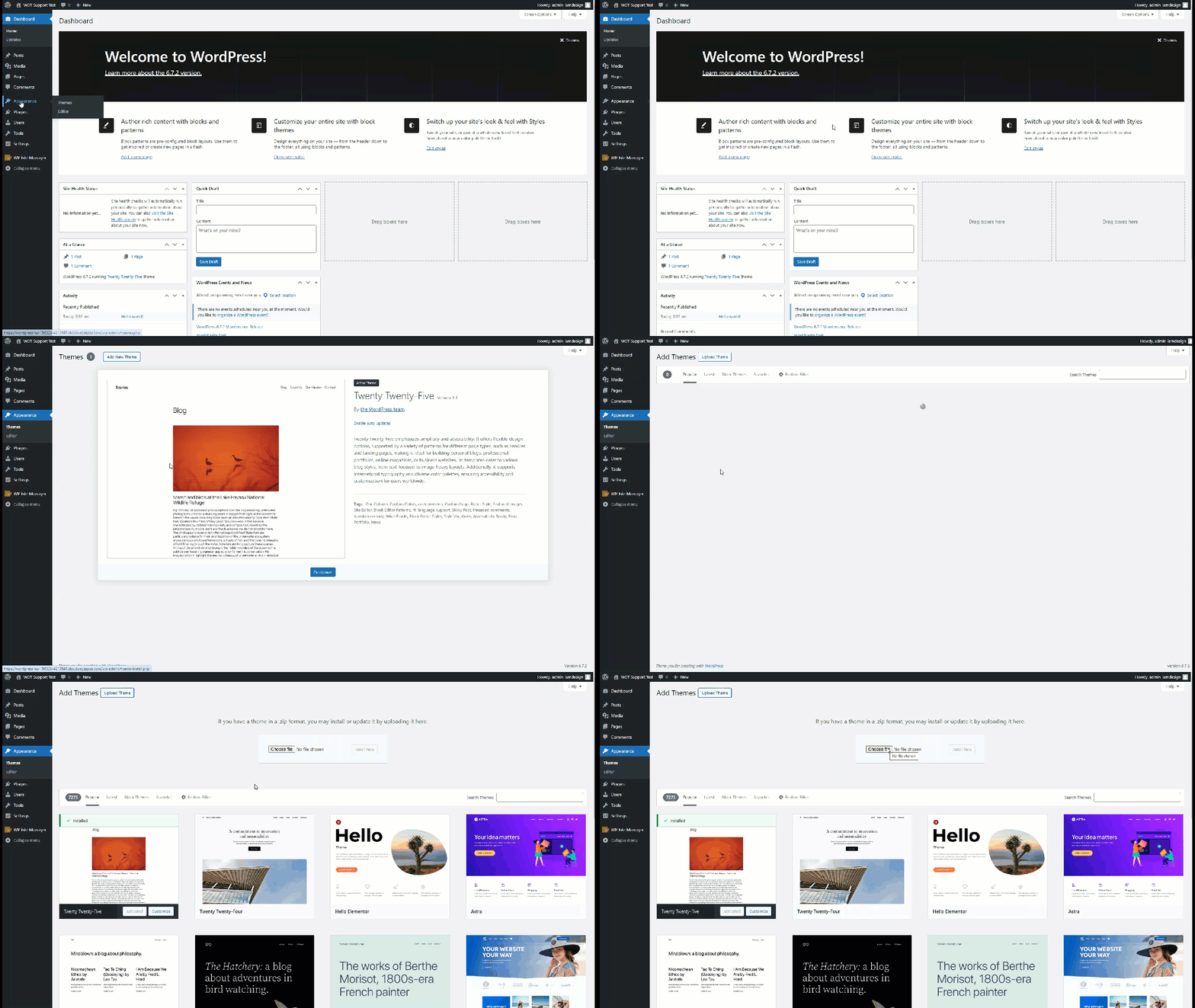
* Go to your WordPress dashboard.
* Navigate to **Appearance** → **Themes**.
* Click the **“Add New”** button at the top.
* Click on **“Upload Theme”** and select the theme `.zip` file from the ThemeForest package you downloaded. You can find the theme `.zip` file inside the extracted folder.
#### **Step 3 : Install & Activate the Theme**
* Click **“Install Now”** and wait for the installation to complete.
* Once installed, click **“Activate”** to enable the theme on your website.
#### Step 4 : Install & Activate the Child Theme
**Purpose of a Child Theme**
A **child theme** allows you to customize your website without affecting the original (parent) theme’s files. This ensures that when the parent theme is updated, your custom changes remain safe and intact. It’s the recommended way to make code-level changes (like editing CSS, functions, or templates).
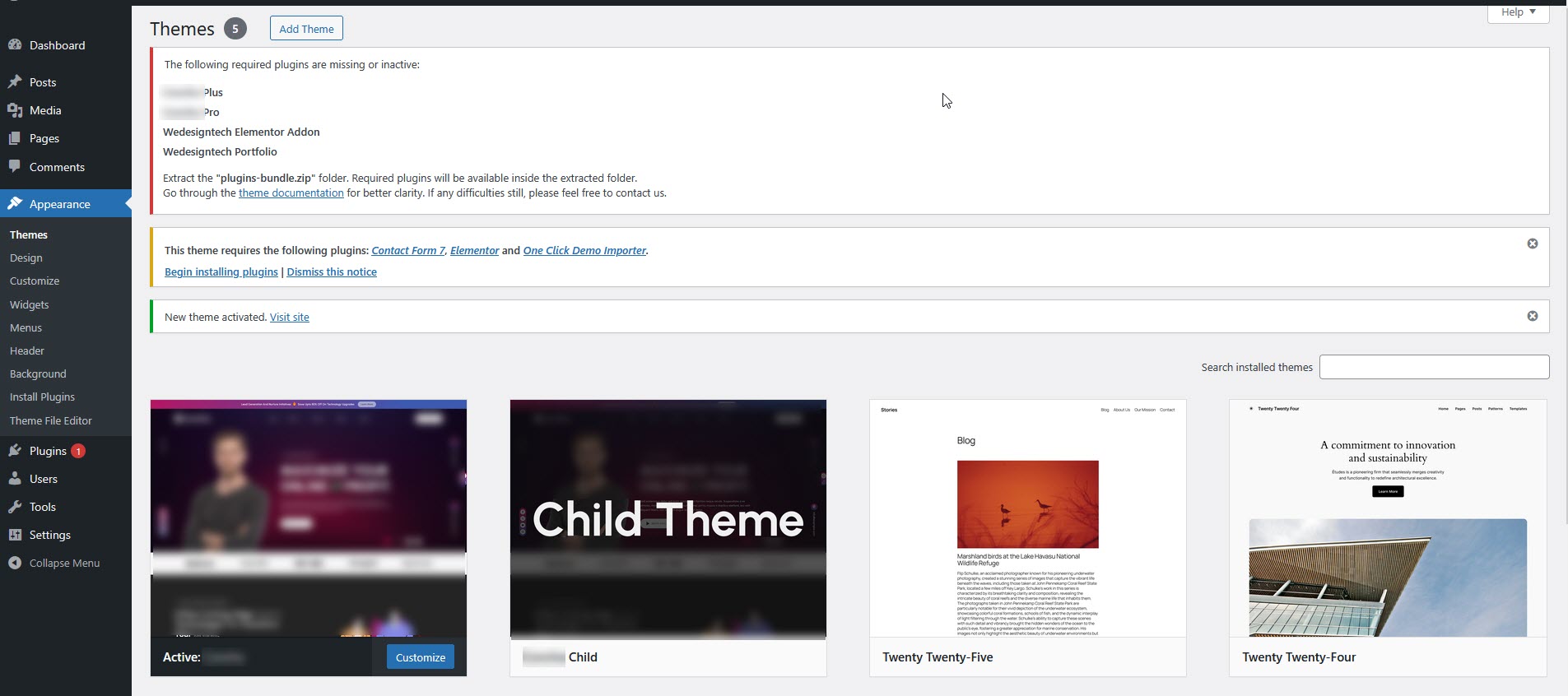
* Go to your WordPress dashboard.
* Navigate to **Appearance > Themes**.
* Click on **“Upload Theme”** and select the **child theme** `theme-child.zip` **file** from the package. The child theme is usually located inside the main theme folder or labelled clearly
* Once selected, click **“Install Now”** and then **“Activate”** the child theme after installation completes.
**Note:** Make sure both the parent and child themes are installed in your WordPress before activating the child theme.
#### **Step 5 : Install Required Plugins**
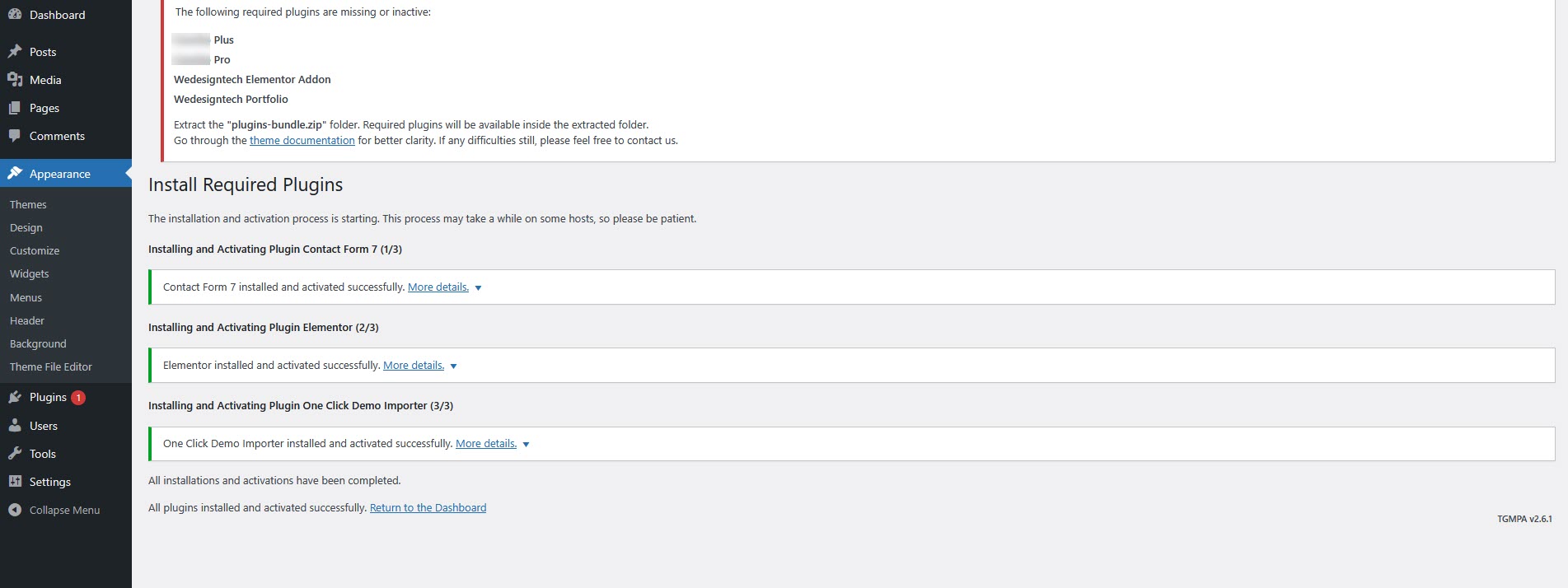
* After activation, you may see a notice that you need to install required plugins.
* Click **“Begin Installing Plugins”**, to install the required plugins.
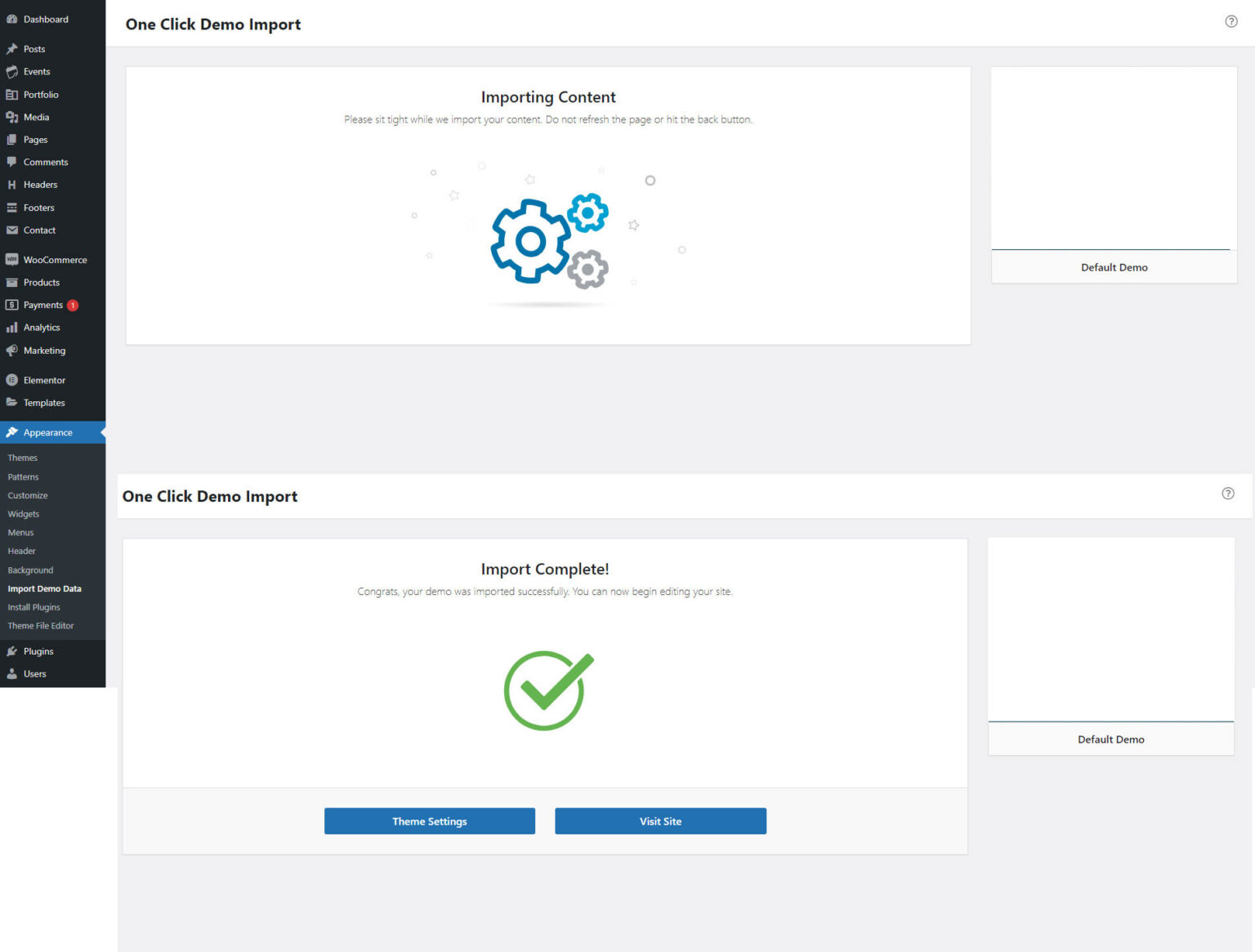
#### **Step 6 :** Import Demo Content
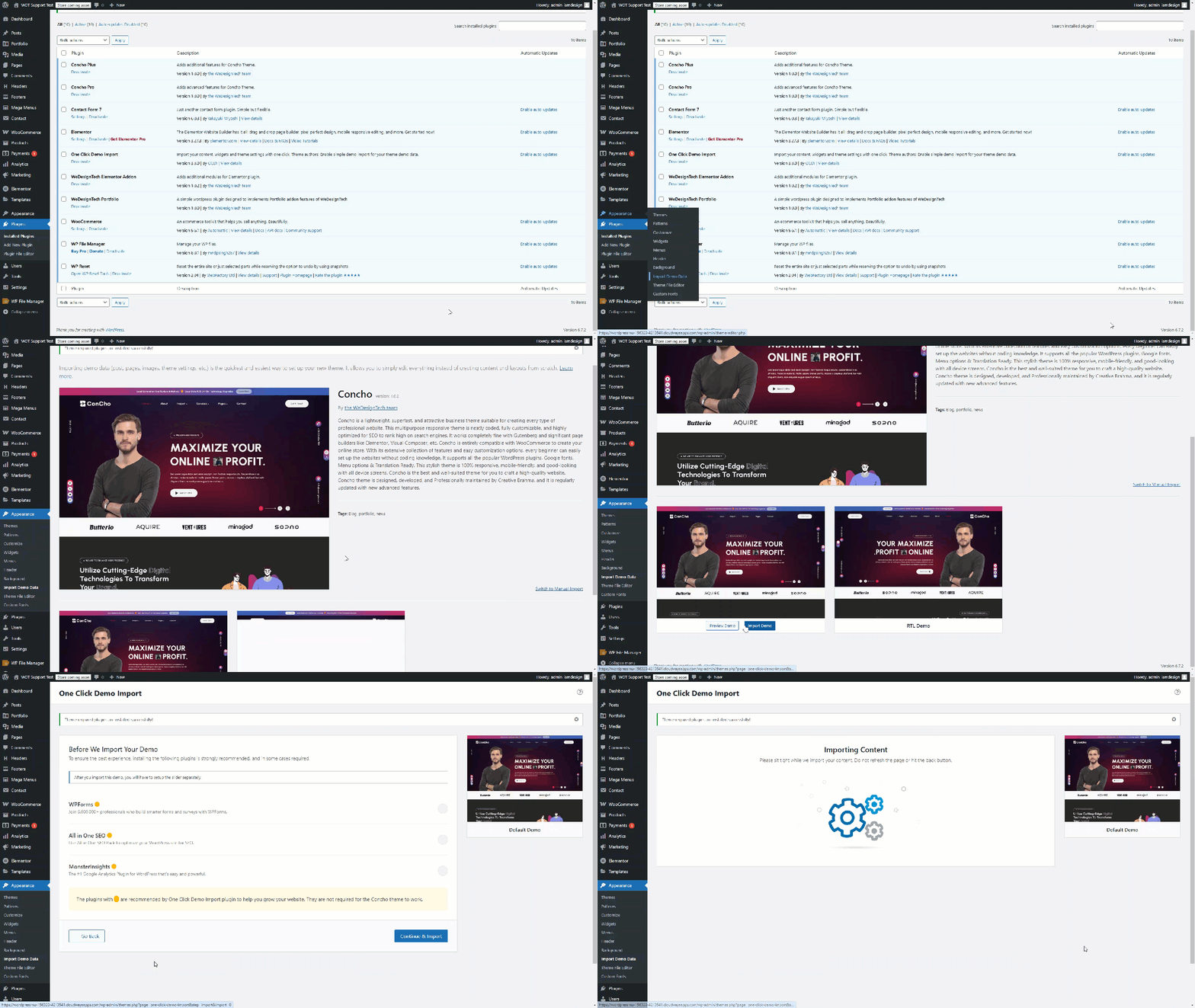
* Go to **Appearance → Install Plugins** in your WordPress dashboard.
* Install and activate the **One Click Demo Import** plugin (if not pre-installed).
* Go to **Appearance → Import Demo Data**.
* You will see a list of available demo layouts.
* Choose the demo you want to import.
* Click the **"Import"** button.
* Click the continue Import button
* Wait for the process to complete (this may take a few minutes, depending on your server speed).