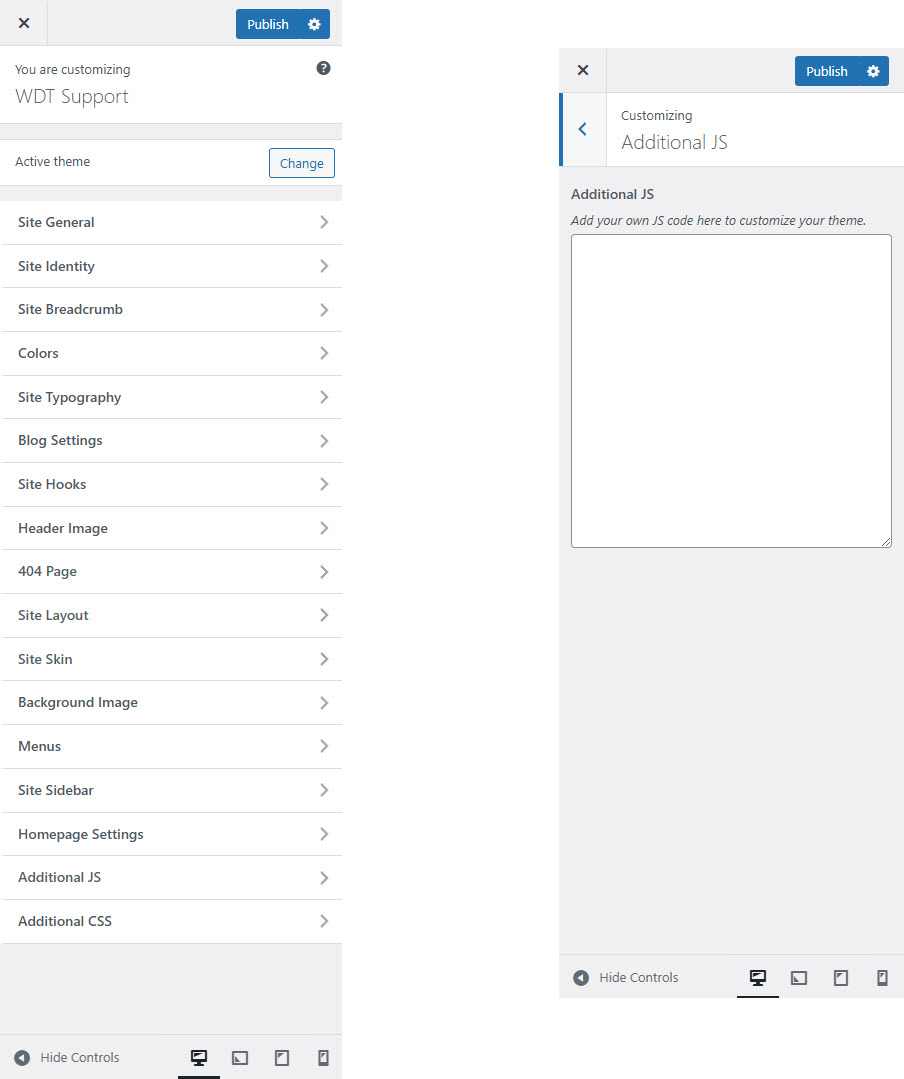
# Additional JS
**Additional JS** section in the Customizer allows you to add custom JavaScript code directly to your site without editing theme files.
Here's how to use this feature:
#### **Customizing with Additional JS**:
* **Accessing Additional JS**:
* Go to **Appearance > Customize**.
* Look for the **Additional JS** or similar section (depending on the theme).
* **Adding Custom JavaScript**:
* In the **Additional JS** field, you can write or paste your custom JavaScript code.
* This code will be applied site-wide, affecting all pages where the theme is used.
* **Best Practices**:
* **Enclose your code**: Use `` tags only if required by your theme. Often, these tags are not needed in the Customizer’s Additional JS field.
* **Test your code**: Before applying complex scripts, test them in a development environment to avoid breaking the site.
* **Optimize performance**: Avoid adding heavy or unnecessary scripts that could slow down your site.
* **Common Uses**:
* Adding interactive elements like sliders or modals.
* Customizing behavior of theme elements.
* Integrating third-party services or analytics that require additional scripts.
**Example:**
To add a simple alert when the homepage loads:
```
document.addEventListener('DOMContentLoaded', function() {
if (window.location.pathname === '/') {
alert('Welcome to the homepage!');
}
});
```
Would you like help with writing a specific JavaScript code snippet for your site?