# Create a page
Creating pages is essential for building your website. You can create unlimited pages and customize them with different layouts and content. Some themes also provide **predefined page templates** for specific functions.
**Here's how you can create a new page for your site:**
{% hint style="success" %}
**Step 1:**
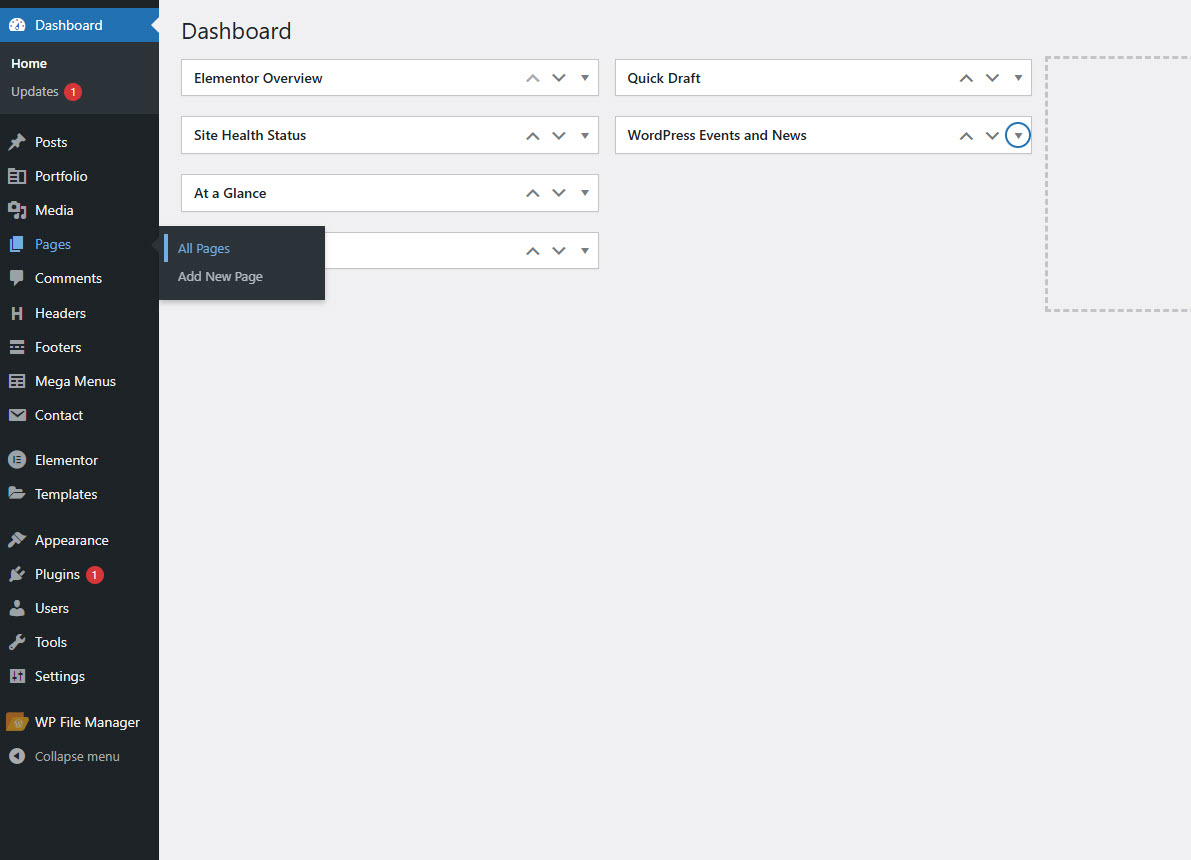
* Log in to your **WordPress Dashboard**.
* Navigate to **Pages → Add New**.
**Step 2:**
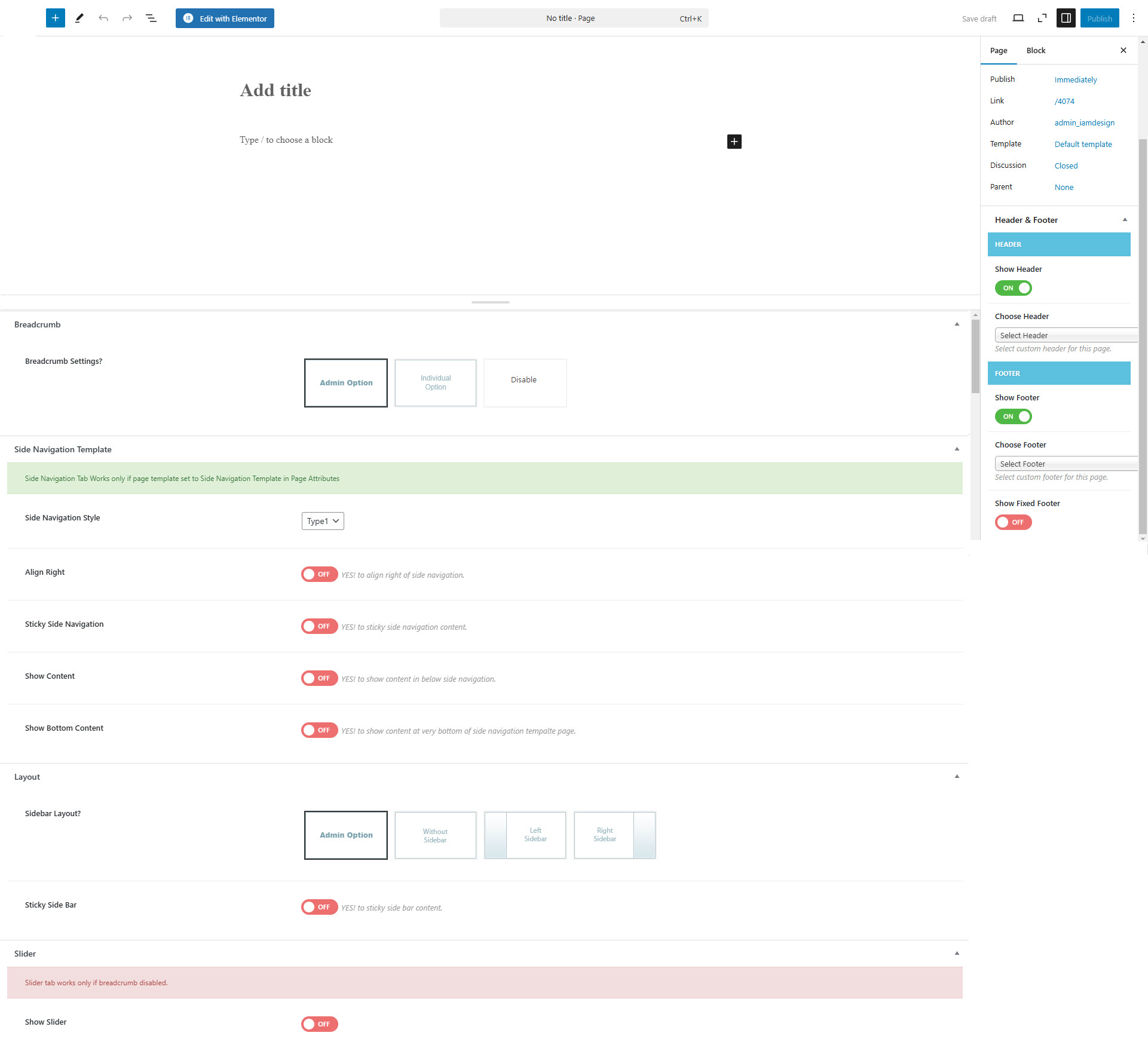
* Enter a **title** for your page.
* Add content using the **Elementor Editor** for a fully visual, drag-and-drop editing experience. **or Classic Editor**.
**Step 3:**
* Customize the page settings:
* **Set a Featured Image** (if needed).
* Choose a **Page Template** under the Page Attributes section.
* Assign a **Parent Page** (if applicable).
**Step 4:**
* Click **Publish** to make the page live or **Save Draft** to edit later.
{% endhint %}
This section provides customization options for **Page Attributes**, including **Breadcrumb Settings, Side Navigation Template, and Layout Settings**.
#### **Breadcrumb Settings**
Breadcrumbs help users navigate your website by displaying a hierarchical path. You can choose from the following options:
* **Admin Option** – Uses the globally configured breadcrumb settings.
* **Individual Option** – Allows customizing breadcrumbs for a specific page or post.
* **Disable** – Removes breadcrumbs from the selected page or post.
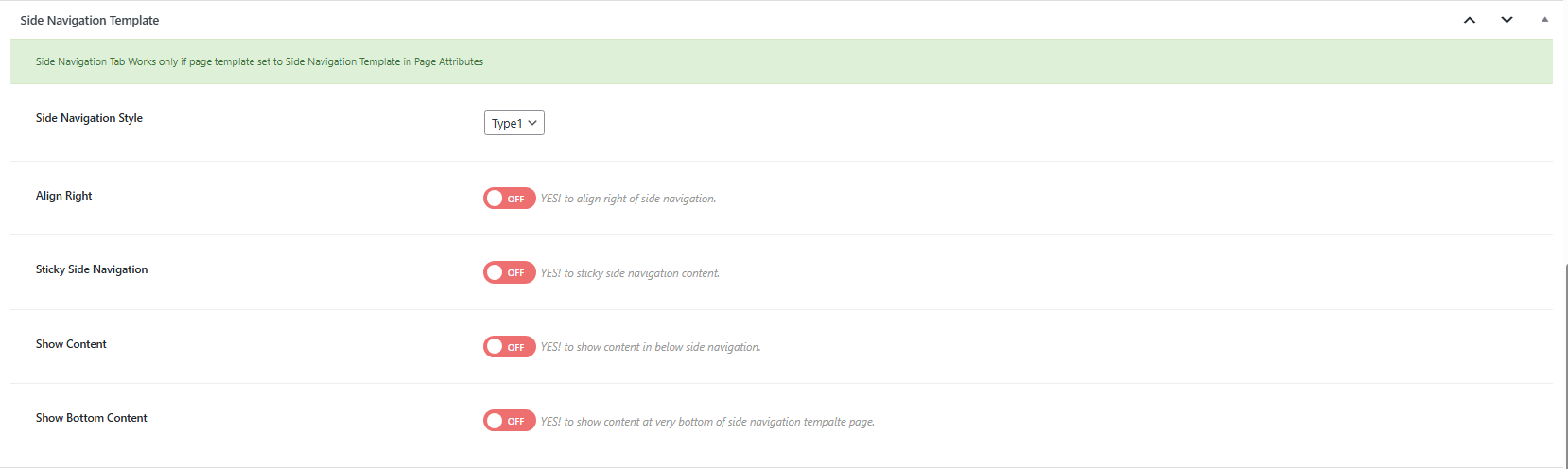
#### **Side Navigation Template**
This template is used for pages that require a **side navigation menu**. It only applies when the **Side Navigation Template** is selected in Page Attributes.
**Options:**
* **Side Navigation Style** – Select a predefined side navigation style.
* **Align Right** – Enable to align the side navigation to the right.
* **Sticky Side Navigation** – Enable to keep the side navigation fixed while scrolling.
* **Show Content** – Enable to display page content below the side navigation.
* **Show Bottom Content** – Enable to add extra content at the bottom of the page.
#### **Layout Settings**
Customize the **layout and sidebar position** for your pages or posts.
**Sidebar Layout Options:**
* **Admin Option** – Uses the default sidebar settings from the theme.
* **Without Sidebar** – Displays content in full width.
* **With Left Sidebar** – Adds a sidebar on the left.
* **With Right Sidebar** – Adds a sidebar on the right.
#### **Sticky Sidebar:**
* **Enable** – Keeps the sidebar fixed while scrolling for better accessibility.
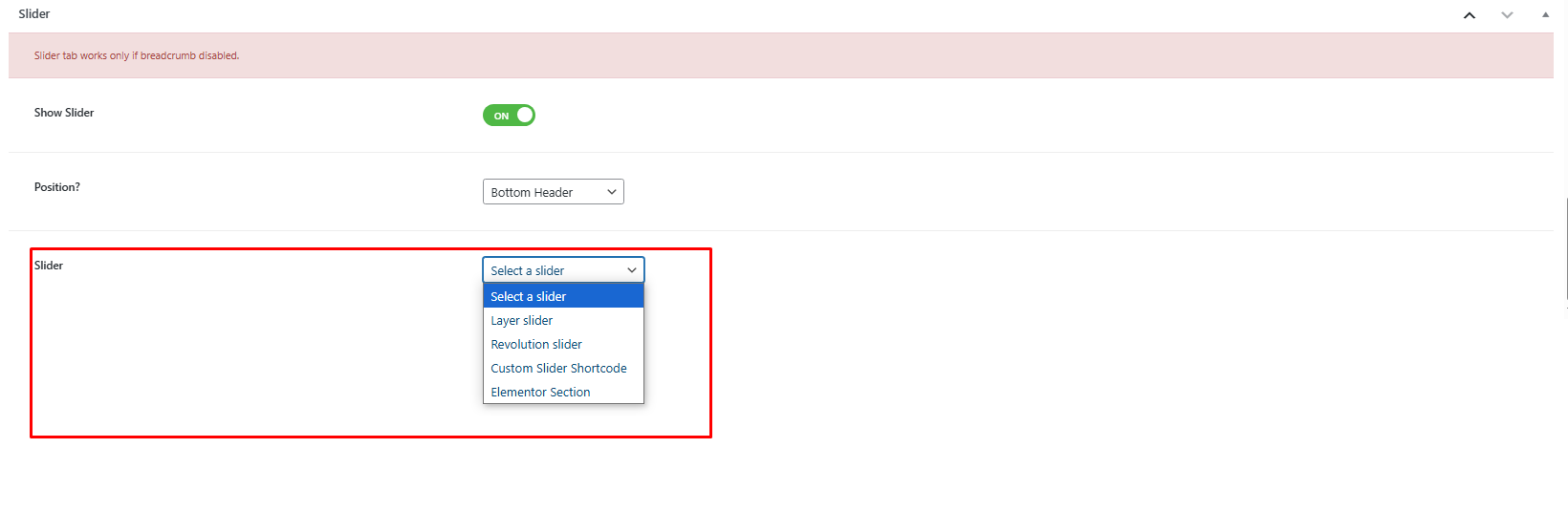
#### Show Slider:
You can apply the slider template to a page by enabling this feature. Please note that it only works if the breadcrumb is disabled on that page