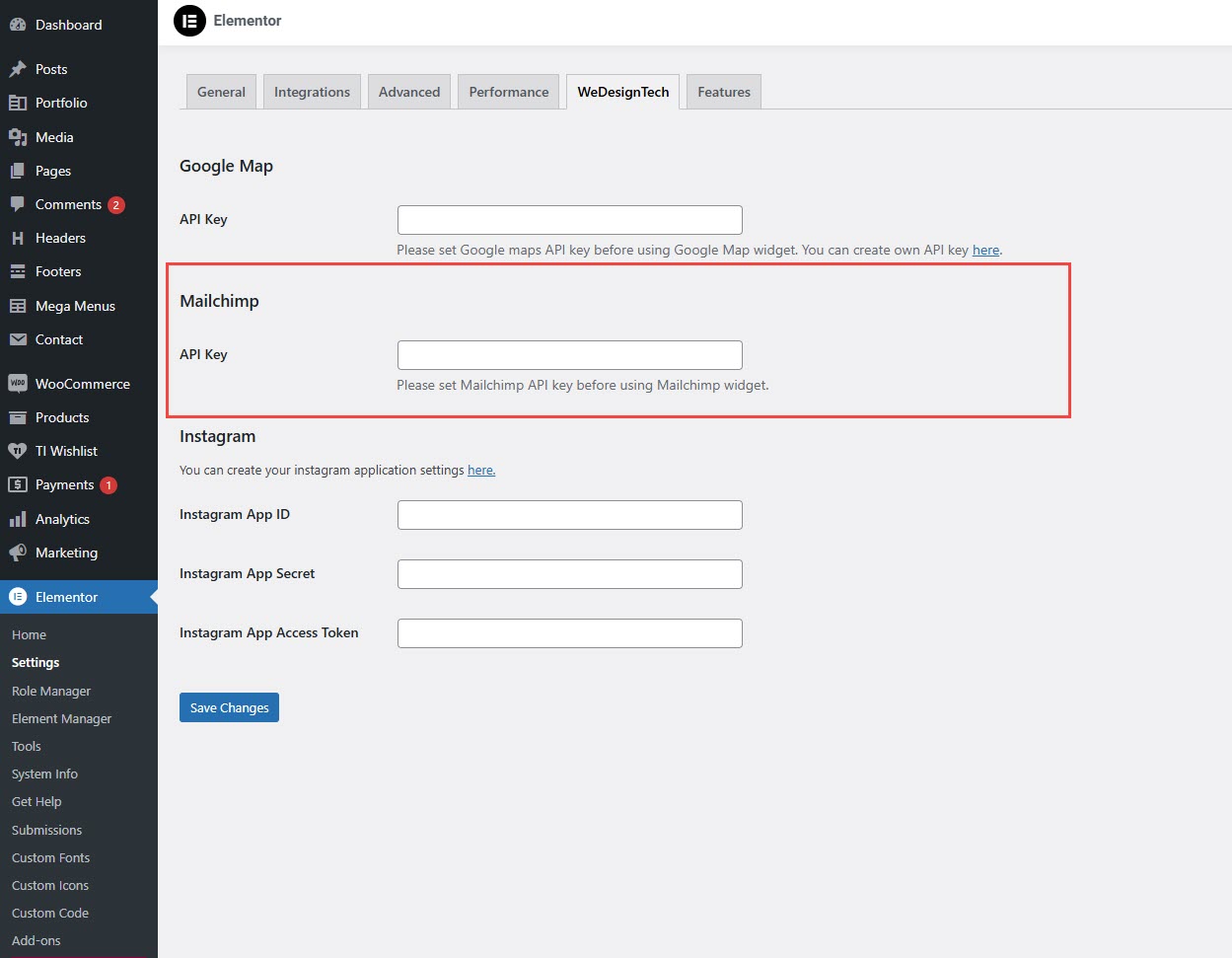
# Mailchimp API Key
{% hint style="success" %}
**Log in** to your WordPress admin panel.
* Navigate to **Elementor** > **Settings**.
* Click on the **Wedesigntech** tab.
* Locate the **Mailchimp API Key** field.
* Paste your **Mailchimp API Key** in the field.
* Click **Save Changes**.
{% endhint %}
#### **Where to Get Your Mailchimp API Key?**
**Step 1:** Log in to your [**Mailchimp Account**](https://mailchimp.com/).
**Step 2:** Go to **Account** > **Extras** > **API Keys**.
**Step 3:** Click **Create A Key** (if you don’t have one).
**Step 4:** Copy the generated API key.
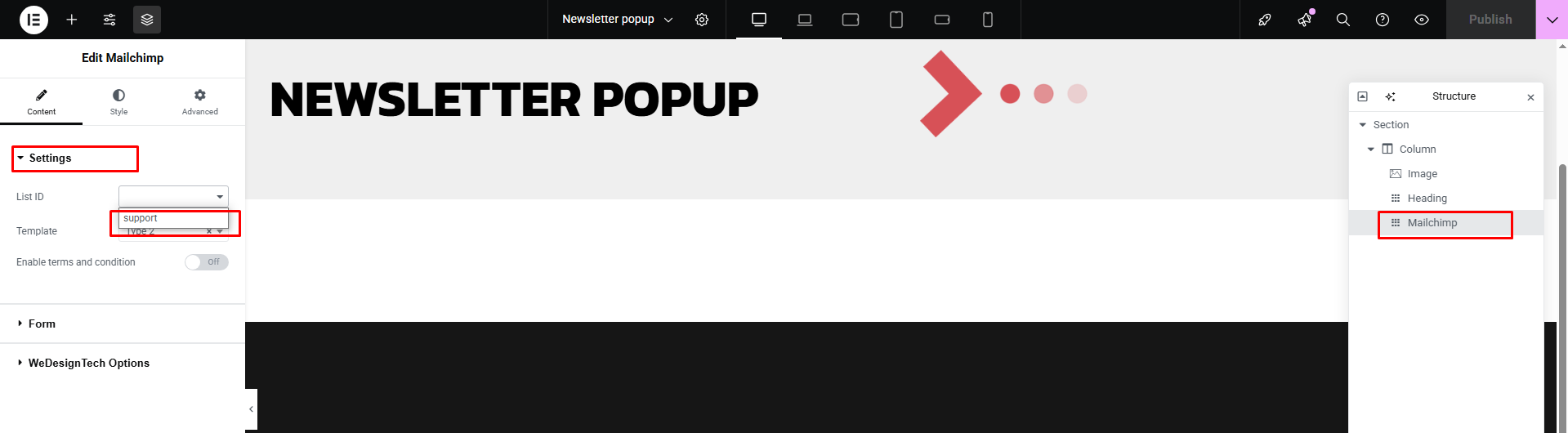
#### How to Activate MailChimp Integration?
**Step 1 :** Navigate to the dashboard > Templates > Saved Templates
**Step 2 :** Locate the newsletter template > Edit with Elementor
**Step 3 :** Mailchimp > Settings > Select the list ID > Publish
{% embed url="" %}